Getting started with Orbit
Five steps, about 30 minutes in total. You can stop after any step; the dashboard checklist remembers where you are.
Check your business details
Open Settings → General and check the business name and time zone. Bookings and reminders use this time zone, so get it right first.
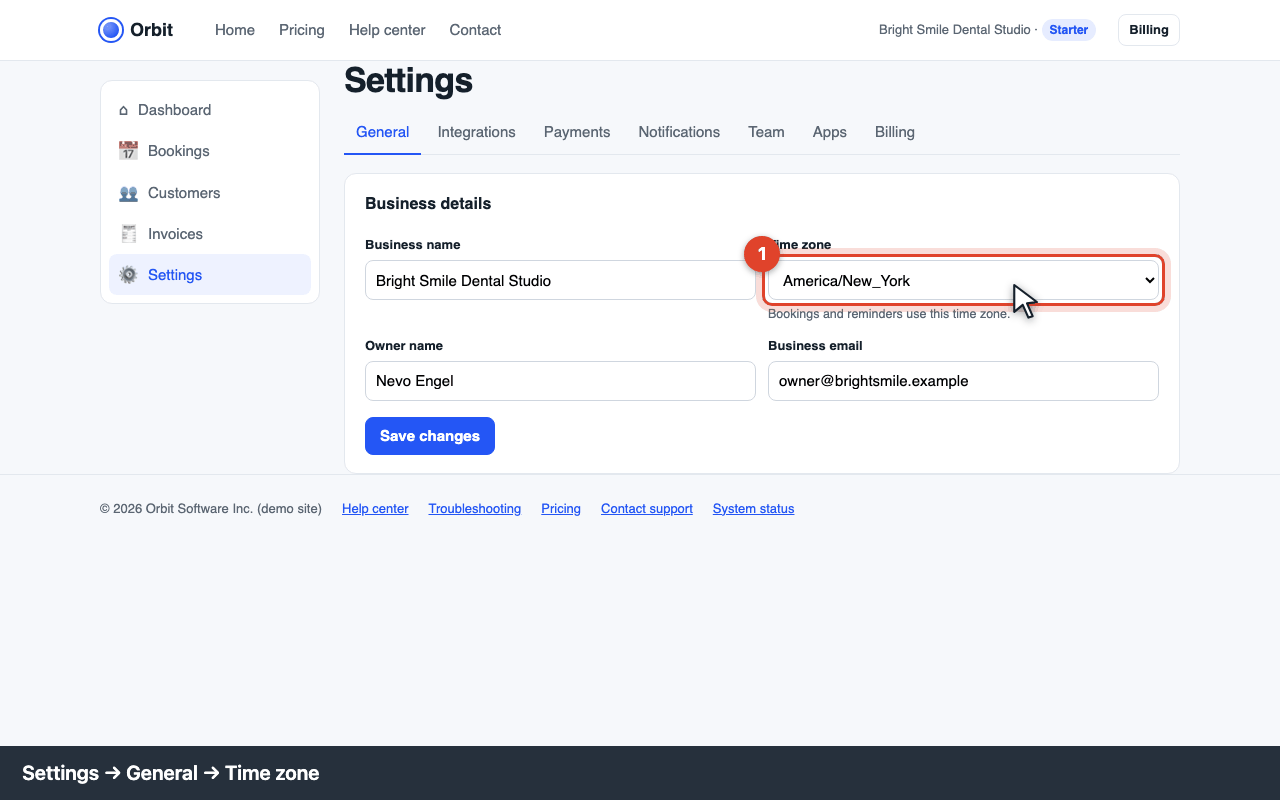
Settings → General: business name and time zone Add your first customer
Go to Customers, click Add customer and enter the name, email and phone. The email is needed to send invoices. You can also import a CSV (see Customers and CSV import).
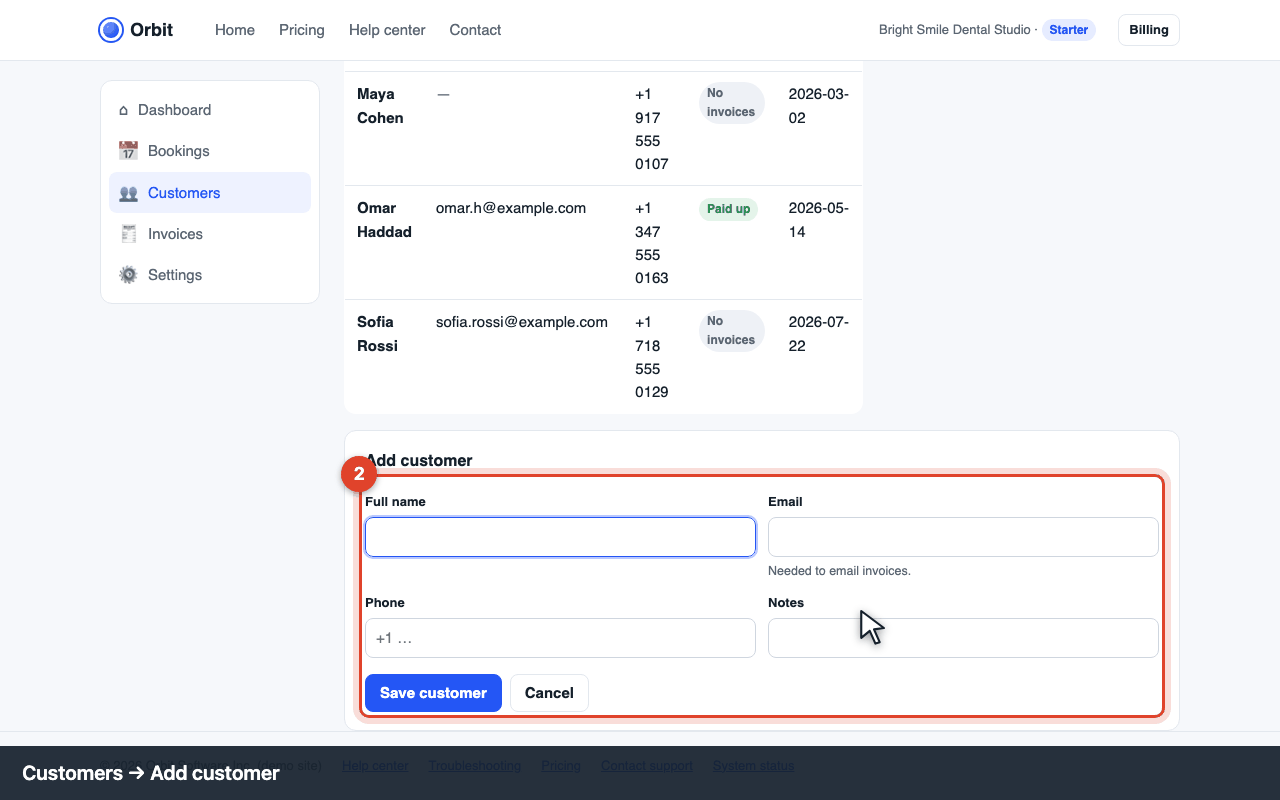
Customers → Add customer form Create and send an invoice
In Invoices, click New invoice, choose the customer, describe the service and enter the amount. Click Create draft, then Send invoice. The customer gets an email with a Pay button (card payments need Stripe).
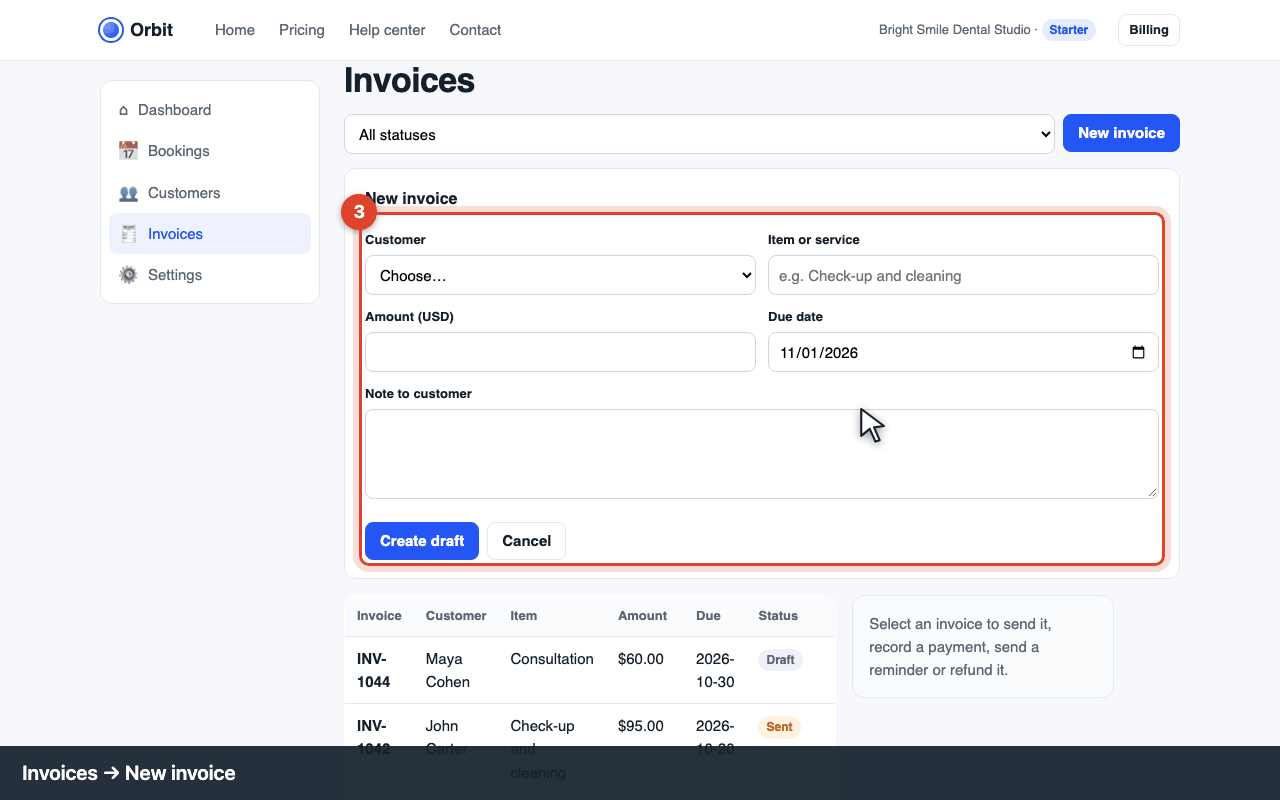
Invoices → New invoice form Connect your calendar
Follow Connect Google Calendar so bookings appear in your calendar and busy times block your booking page.
Turn on reminders and install the apps
Email reminders are on by default. SMS reminders need the Pro plan. Then install the mobile app and the Chrome extension.
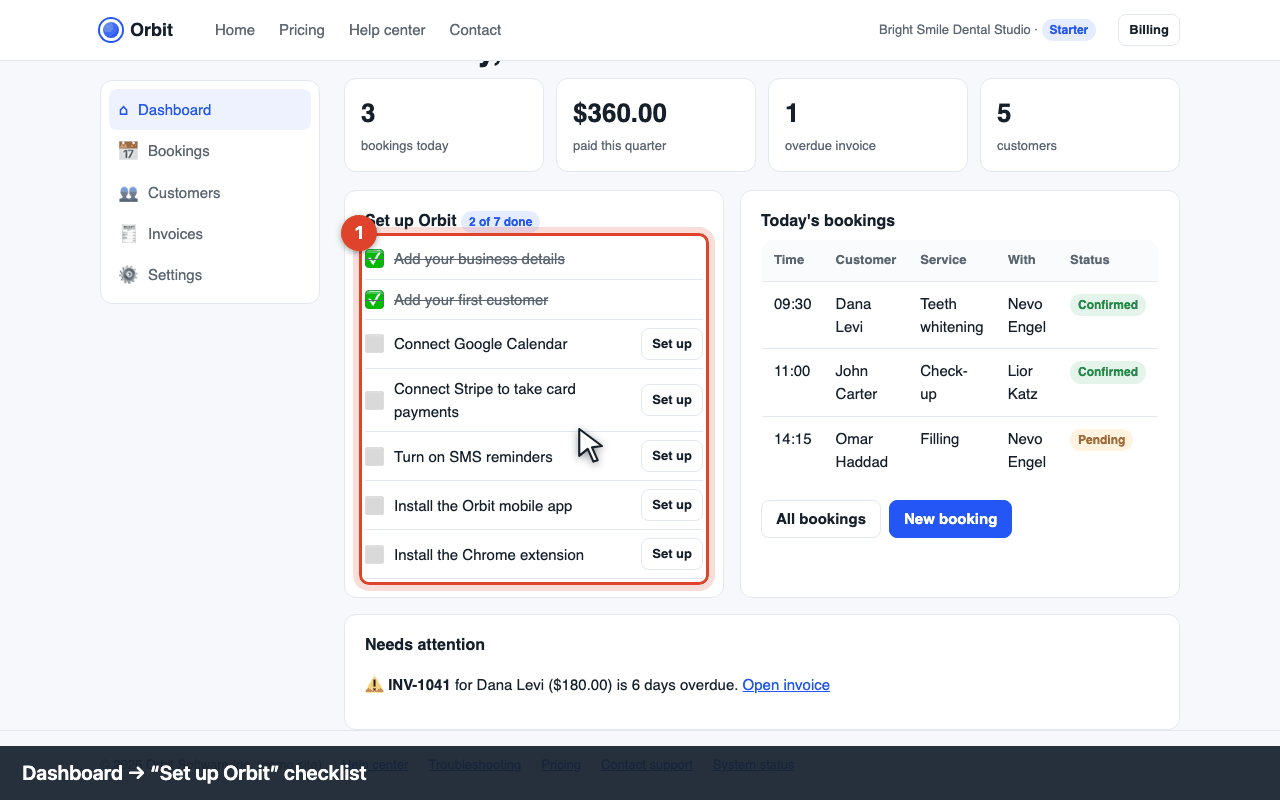
Dashboard: the setup checklist shows what's left