Install the Orbit mobile app
The mobile app shows your bookings, lets you take card payments and sends push notifications. Pairing takes about two minutes.
InstallPair your phoneCommon problems
1. Install the app
- iPhone / iPad: App Store → search “Orbit Front Desk” → Get. Needs iOS 16 or newer.
- Android: Google Play → “Orbit Front Desk” → Install. Needs Android 10 or newer.
The app is free; it uses your Orbit account.
2. Pair your phone with your account
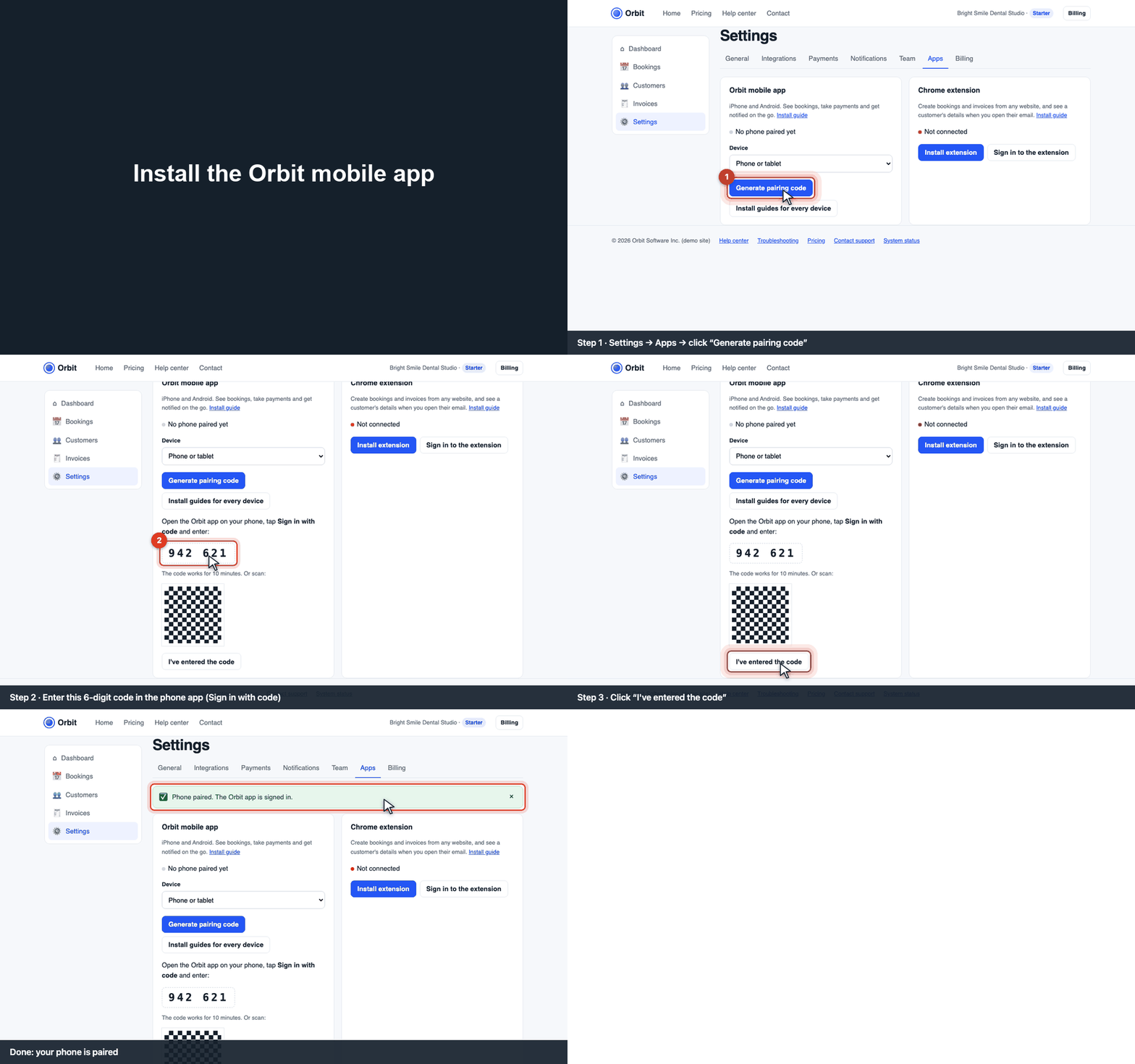
In the web app, open Settings → Apps.
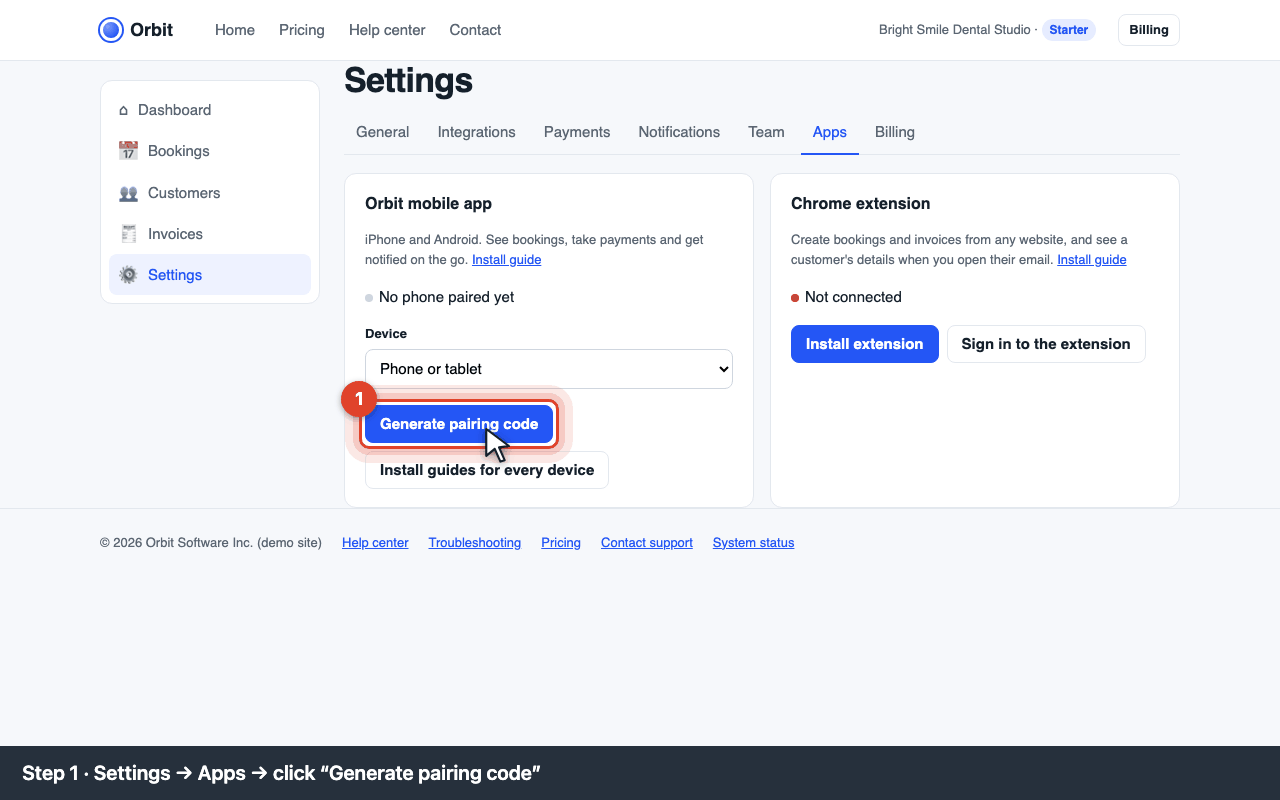
Settings → Apps: the Orbit mobile app card Click Generate pairing code. A 6-digit code appears (valid for 10 minutes), plus a QR code.
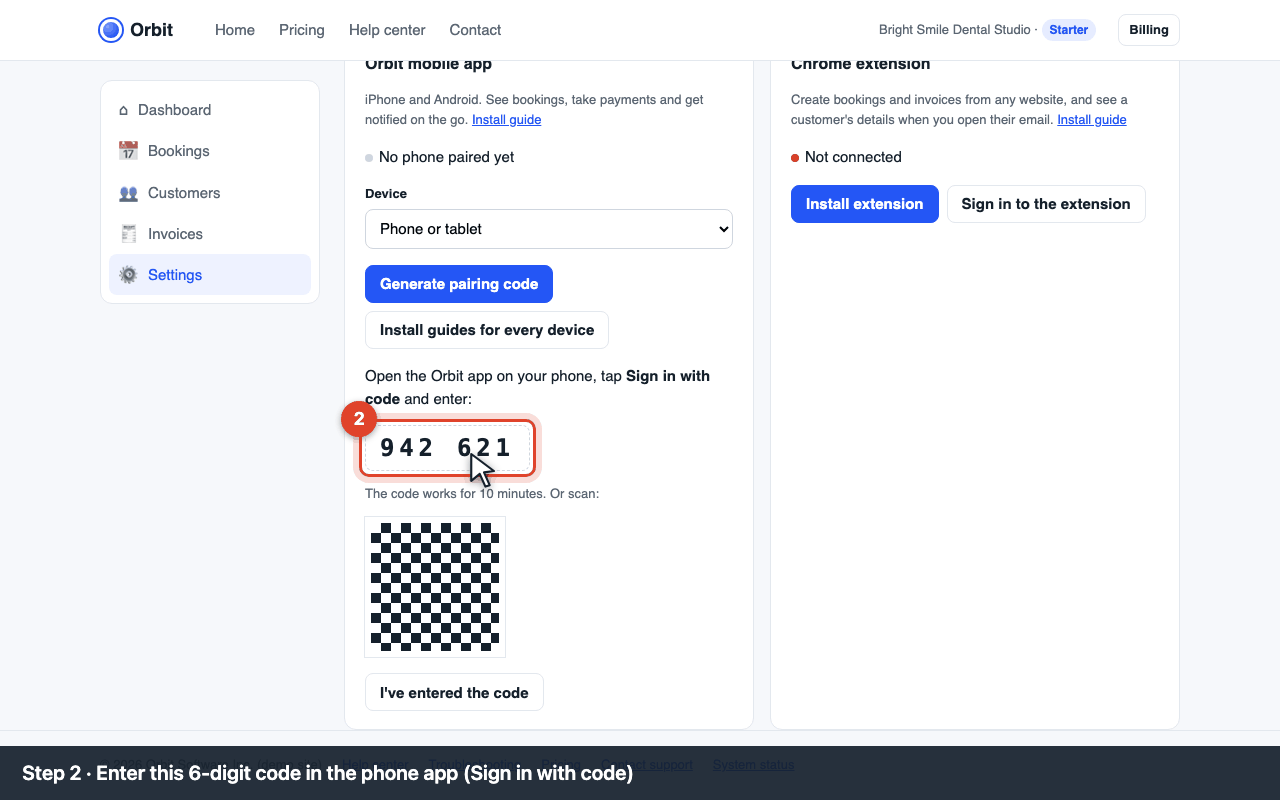
The 6-digit pairing code and QR code On your phone, open the Orbit app, tap Sign in with code and type the 6 digits (or tap Scan QR and point the camera at the screen).
Back in the web app, click I've entered the code. The card now shows Phone paired.
Common problems
“Code expired” (E-APP-110)
Codes last 10 minutes. Click Generate pairing code again and enter the new one.
“Code not recognized” (E-APP-111)
Check the digits (0 vs O), and that you're signed in to the right Orbit account in the web app. Only the Owner or an Admin can pair phones.
No push notifications
On iPhone: Settings → Notifications → Orbit → Allow. On Android: long-press the app icon → App info → Notifications → on. Also check Orbit app → Profile → Notifications.
Can staff use the app?
Yes. Each team member pairs their own phone with their own account (Settings → Apps while signed in as themselves). Staff see only their own bookings.