Connect Stripe payments
Orbit charges cards through Stripe. You keep a Stripe account; Orbit adds no fee on top of Stripe's 2.9% + 30¢ per successful card payment (US).
Open Settings → Payments.
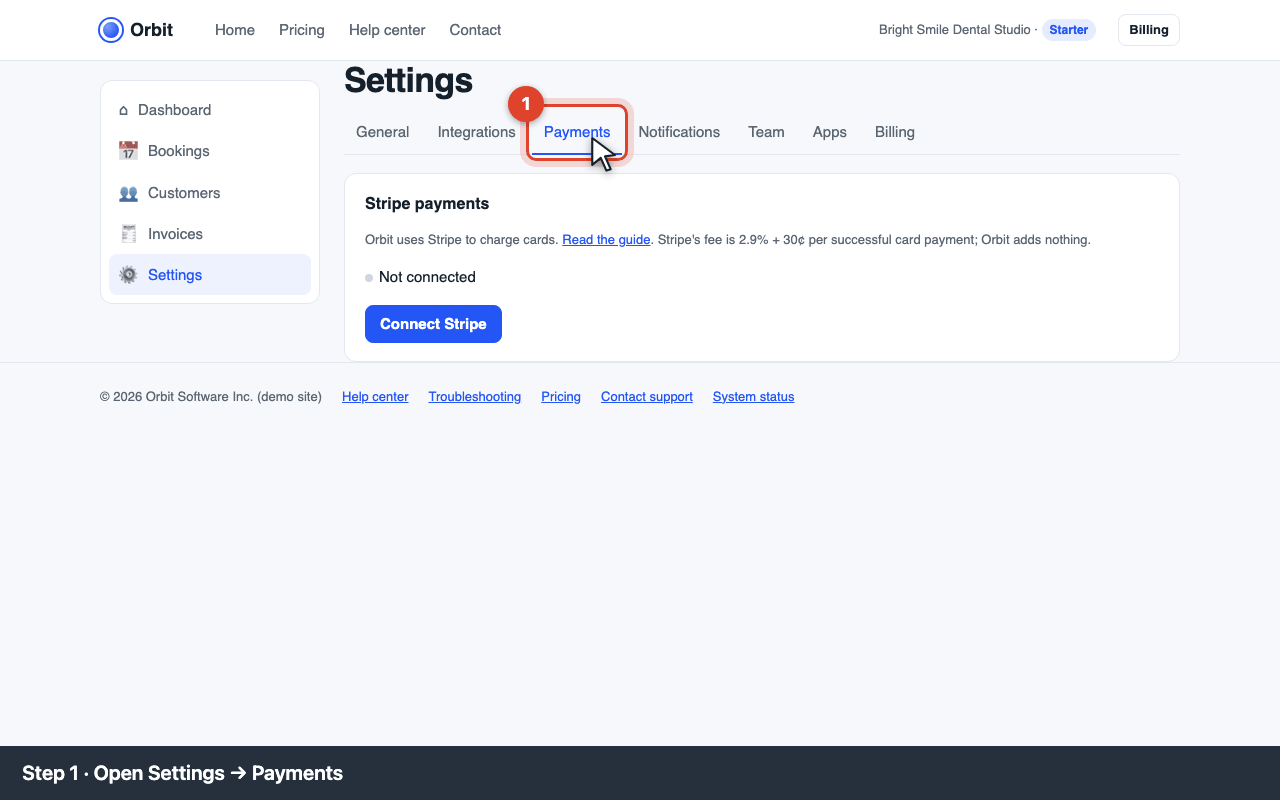
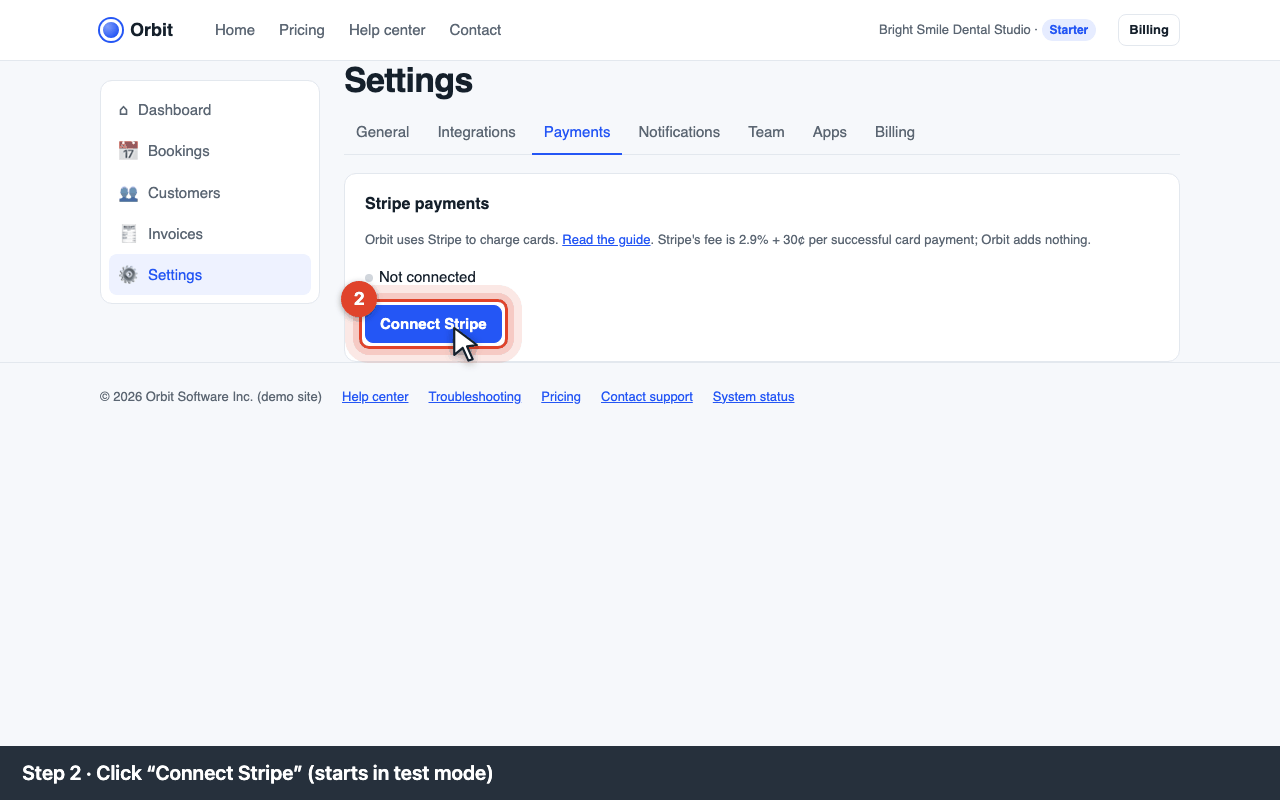
Settings → Payments tab Click Connect Stripe. Sign in to Stripe or create an account when asked. Orbit connects in test mode first, so you can try a payment with Stripe's test card 4242 4242 4242 4242.
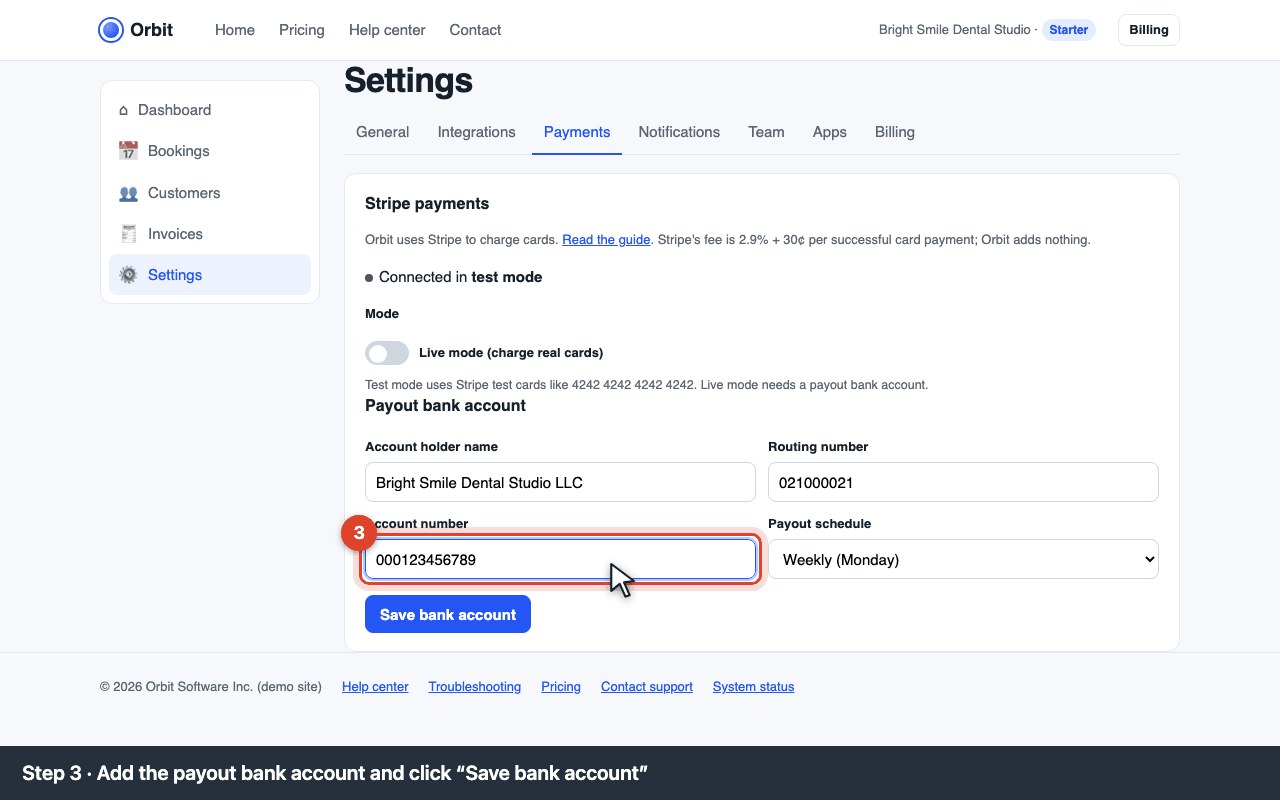
Connect Stripe button Add the payout bank account: account holder name, 9-digit routing number, account number and payout schedule, then Save bank account. For your security, type the account number yourself; never share it in chat.
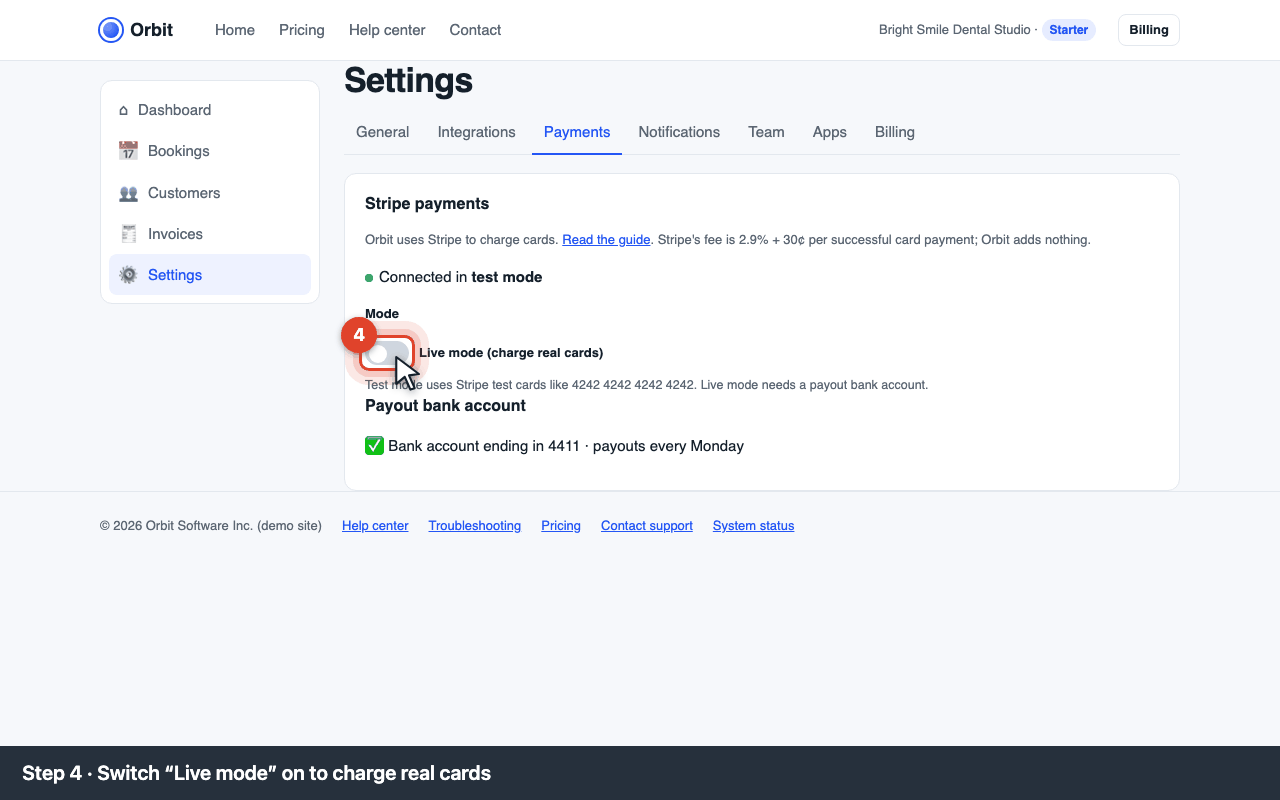
Payout bank account form Switch Live mode on. Real cards are charged from now on. Switching to live before saving a bank account shows E-PAY-405.
Live mode switch

Payouts
Stripe pays out to your bank on the schedule you chose (daily, weekly on Monday, or monthly). The first payout takes 7 days; after that 2 business days.
Error codes
E-PAY-402 · card declined
The customer's bank declined the card. No charge was made. Ask the customer to try another card or contact their bank. Common causes: insufficient funds, wrong CVC, foreign card blocked.
E-PAY-405 · live mode needs a payout bank account
Add the bank account in Settings → Payments and save, then switch Live mode on.
E-PAY-410 · refunds need a connected Stripe account
Refund through Orbit only works for payments taken through Stripe. Connect Stripe, or record the refund manually and pay the customer back outside Orbit.
Stripe says “account restricted”
Stripe needs more verification (ID or business documents). Open the Stripe dashboard → Home → the yellow banner, and complete it. Payments pause until then.