Install the Chrome extension
The extension adds an Orbit button to Chrome: create a booking or invoice from any page, and see a customer's record when you open their email in Gmail.
Install
In Chrome, open the Chrome Web Store page “Orbit Front Desk” and click Add to Chrome, then Add extension. (Edge and Brave work too.)
Click the puzzle-piece icon in Chrome's toolbar and pin Orbit so the button is always visible.
In the web app, open Settings → Apps. The Chrome extension card shows Not connected until you sign in.
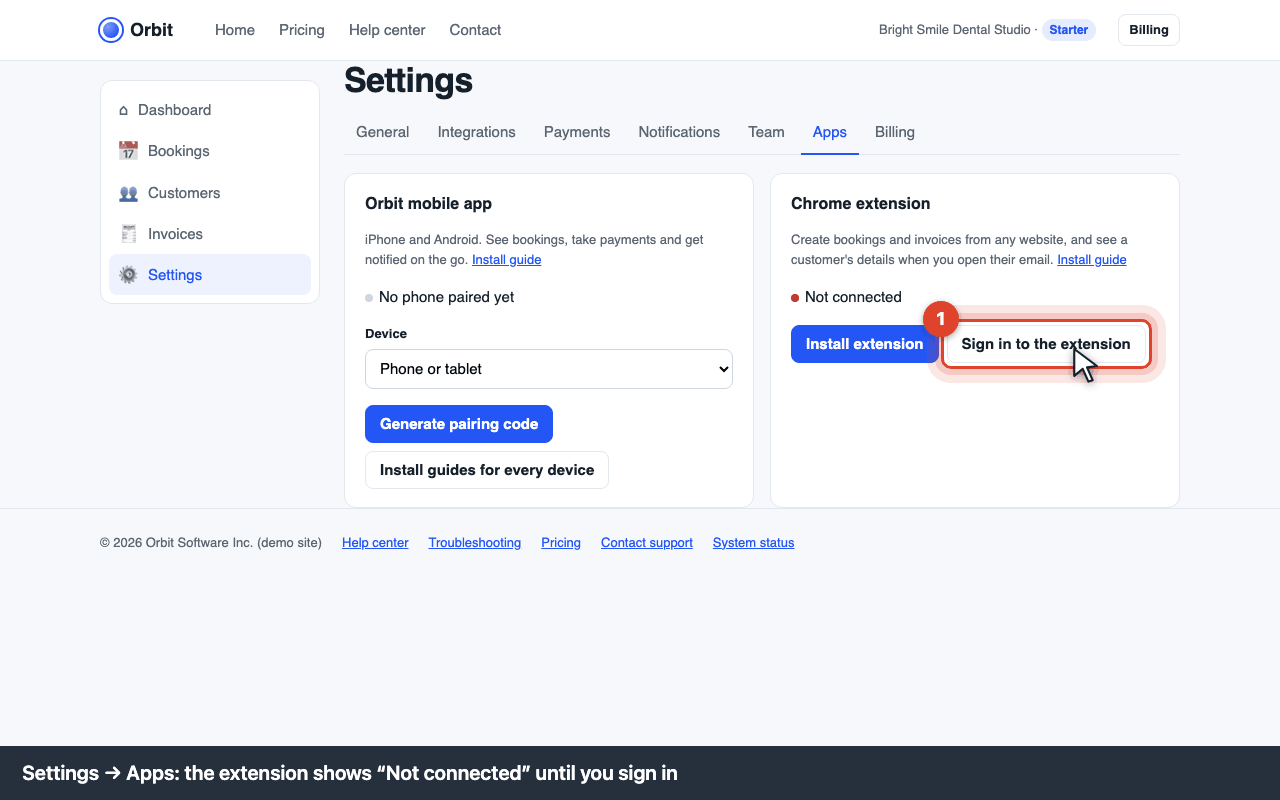
Settings → Apps: Chrome extension card showing Not connected Click Sign in to the extension. Chrome opens a small window; approve it. The card changes to Connected to this account.
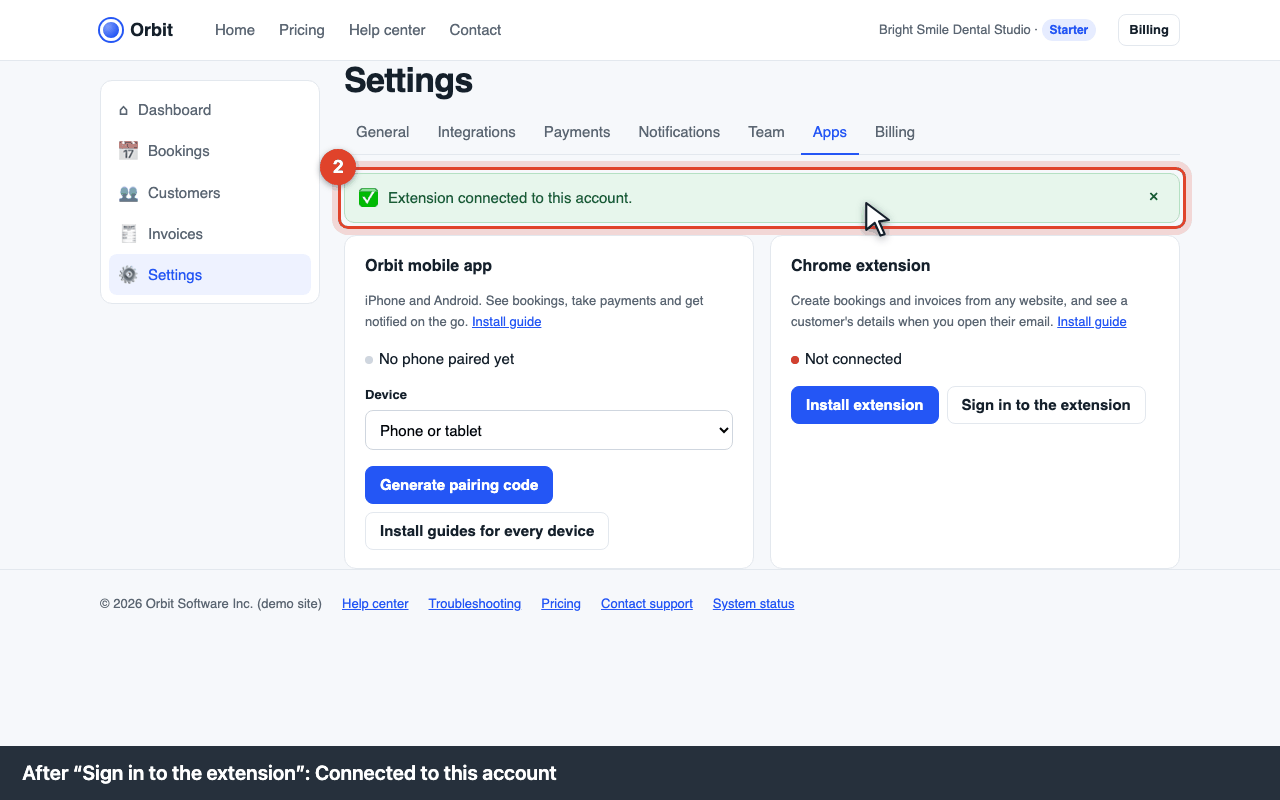
After signing in: Connected to this account
Troubleshooting
The extension says “Not connected” (E-EXT-301)
The extension isn't signed in to your account. In the web app go to Settings → Apps and click Sign in to the extension. If it still shows Not connected: 1) make sure you're signed in to the web app in the same Chrome profile, 2) allow third-party cookies for orbit.example (Chrome → Settings → Privacy → Cookies), 3) remove and re-add the extension.
The Orbit button doesn't appear in Gmail
Reload Gmail after installing. The button appears at the top of an open email, next to Reply. It works with Gmail and Outlook on the web.
Does it work on Safari or Firefox?
Not yet. Chrome, Edge and Brave are supported. Safari is planned for 2027.