Invoices and payments
Create an invoice in a minute, send it by email with a Pay button, and watch the status change as the customer pays.
Statuses
| Draft | Created, not sent yet. Edit freely. |
| Sent | Emailed to the customer, not yet due. |
| Overdue | Past the due date and unpaid. Reminders go automatically on day 1, 7 and 14. |
| Paid | Paid by card, or you recorded a payment. |
| Refunded | Money returned to the customer. |
Create and send an invoice
Open Invoices and click New invoice.
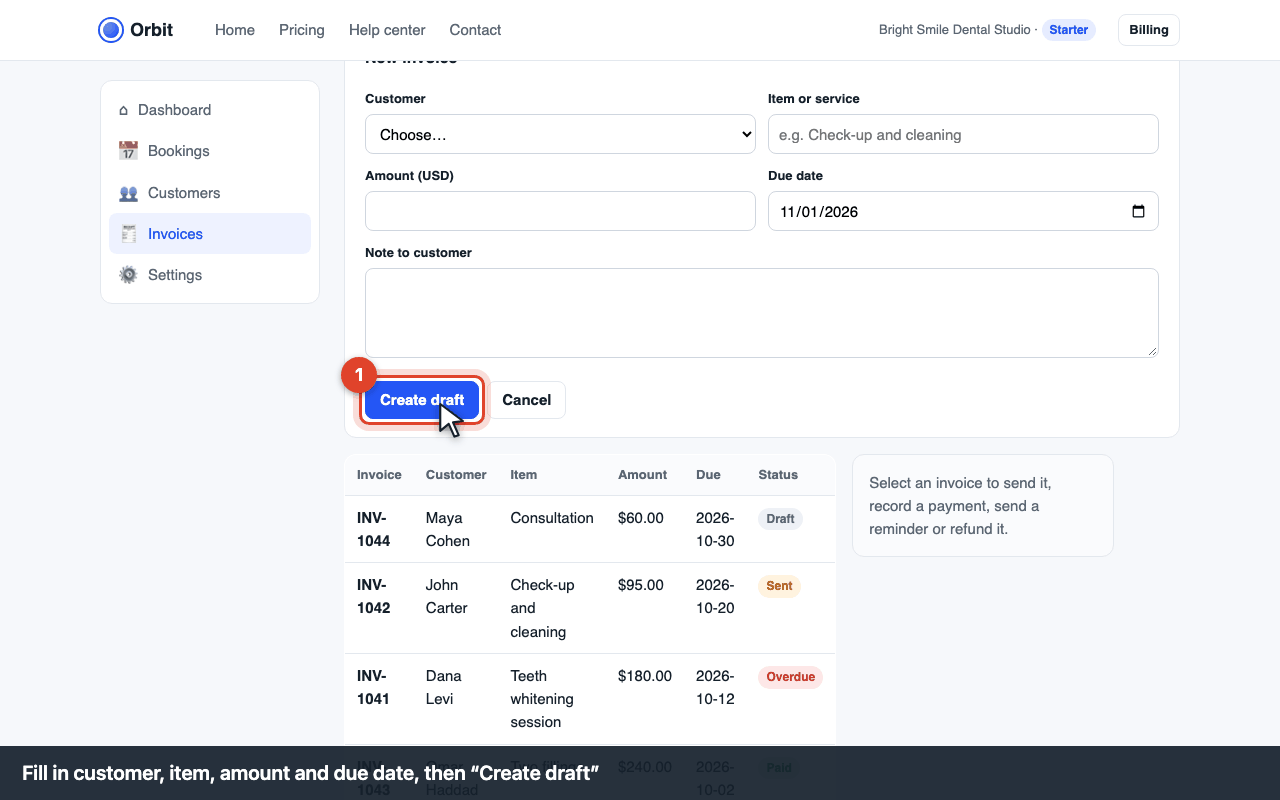
New invoice form Choose the customer, describe the item or service, enter the amount and due date (default: 14 days). Click Create draft.
Open the draft and click Send invoice. The customer needs an email address; otherwise you see E-INV-301.
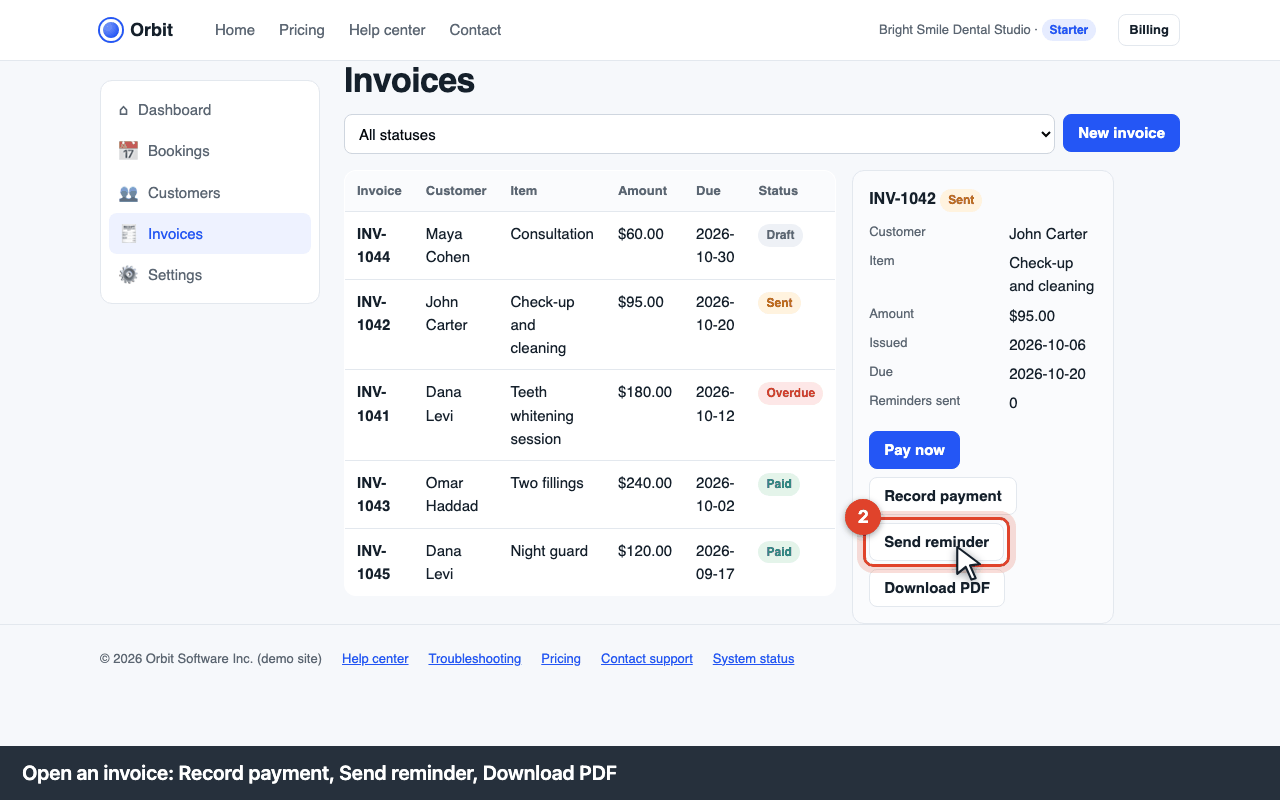
Invoice detail with Send, Record payment and Reminder buttons
Reminders
Automatic reminders go out 1, 7 and 14 days after the due date. To send one now, open the invoice and click Send reminder. Each invoice shows how many reminders were sent.
Record a payment made outside Orbit
Cash or bank transfer: open the invoice and click Record payment. The status becomes Paid.
Refunds
For card payments through Stripe: open the paid invoice and click Refund (Owner and Admin only). The money returns in 5–10 business days. Without Stripe you'll see E-PAY-410; record the refund manually instead. Orbit's own refund policy for your subscription is on the pricing page.
Error codes
E-INV-301 · customer has no email address
Add an email in Customers → the customer → details, then send again.
E-INV-305 · invoice already paid
You tried to send or remind about a paid invoice. Nothing to do.