Customers and CSV import
The Customers page is your little CRM: contact details, notes, every invoice and the payment status (Paid up, Awaiting payment, Overdue).
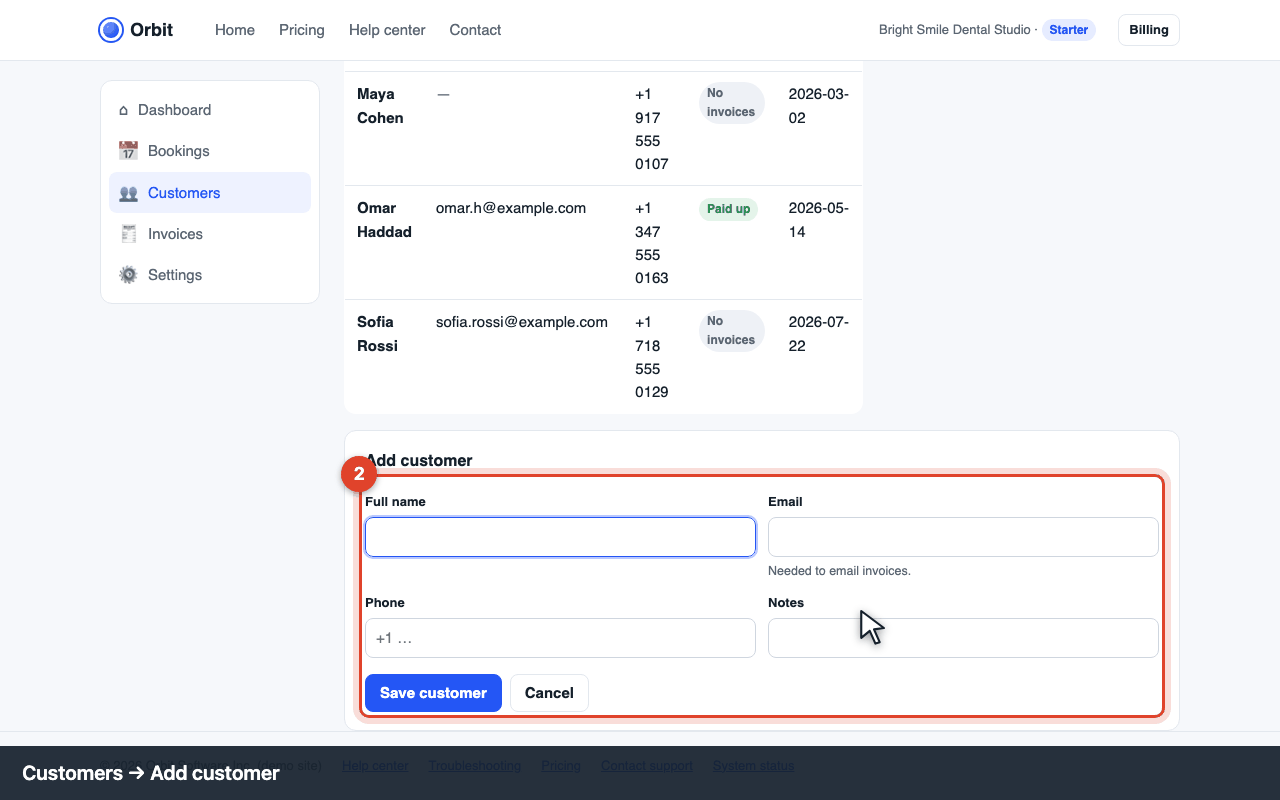
Add a customer
Click Add customer, enter at least the name. Add an email if you want to send invoices (error E-INV-301 otherwise) and a phone for SMS reminders.
Payment status
- Paid up: nothing open.
- Awaiting payment: an invoice was sent and isn't due yet.
- Overdue: an invoice is past its due date. Send a reminder from the invoice.
Import a CSV
Click Import CSV on the Customers page.
Your file needs the columns
name,emailandphone(header row, comma-separated, UTF-8). Optional:notes,tags. Up to 5,000 rows per file.Choose the file and click Import. Duplicates (same email) are updated, not doubled.
Error codes
E-IMP-220 · missing required column
The file has no email (or name/phone) column. Open the CSV in a spreadsheet, add the missing column (it may be empty for some rows), save as CSV and import again. Exports from Google Contacts call the column “E-mail 1 - Value”; rename it to email.
E-IMP-221 · file too large
Split the file into parts of up to 5,000 rows.
E-CUS-110 · no email on file
You tried to email a customer who has no email address. Add one in their details.