Orbit on Amazon Fire TV and Fire Stick
Install from the Amazon Appstore, or with the Downloader app, and pair with a code.
Demo site: the buttons open a demo download dialog and nothing is installed on your device.
InstallVideoPair with a codeTroubleshootingRequirements
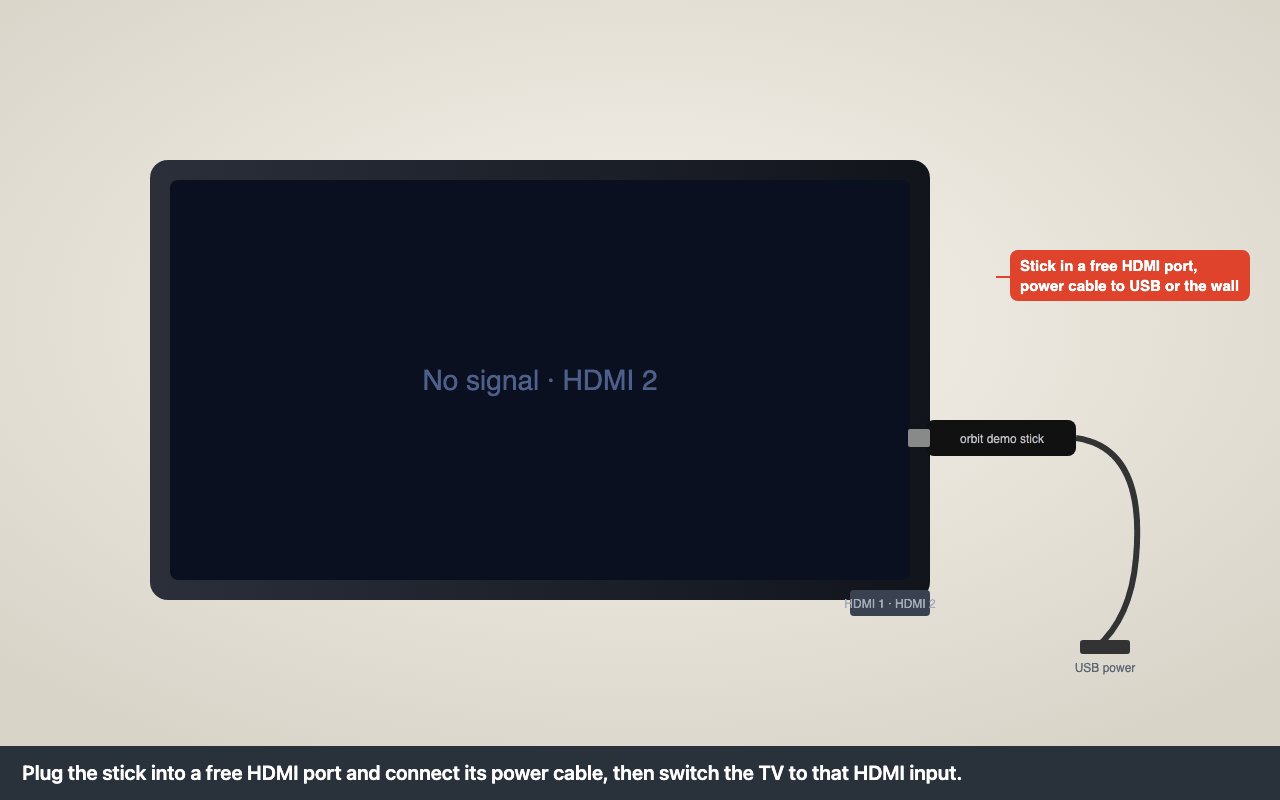
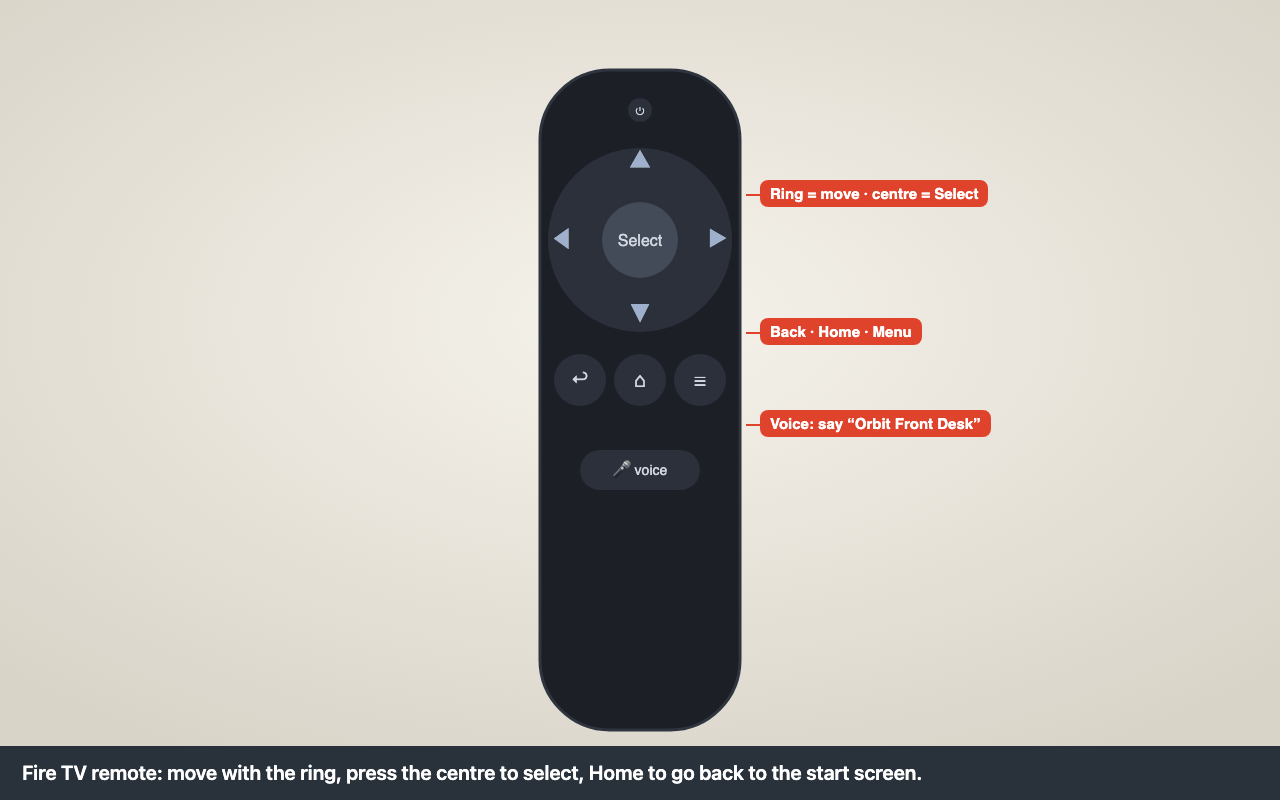
Install
Install from the Amazon Appstore
Find the app
From the home screen choose Find → Search, say or type Orbit Front Desk and select it.
Fire TV home: Find Get it
Choose Get (or Download), wait for the download, then Open.
If the Appstore doesn't list Orbit in your country (E-APP-120): install with Downloader
Install Downloader
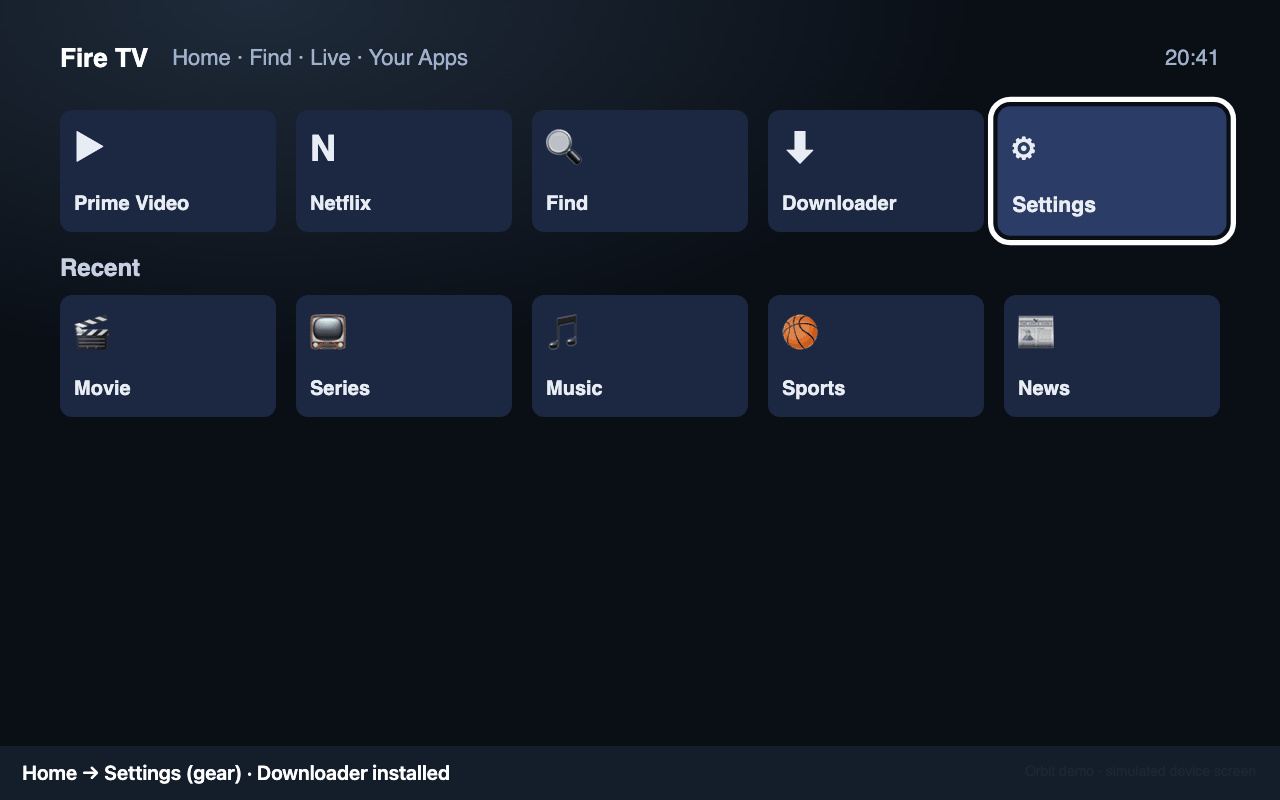
Find → Search → Downloader (orange icon, by AFTVnews) → Get.
Fire TV home: Downloader installed Open Settings → My Fire TV
Press the Home button, go to Settings (gear icon) → My Fire TV.
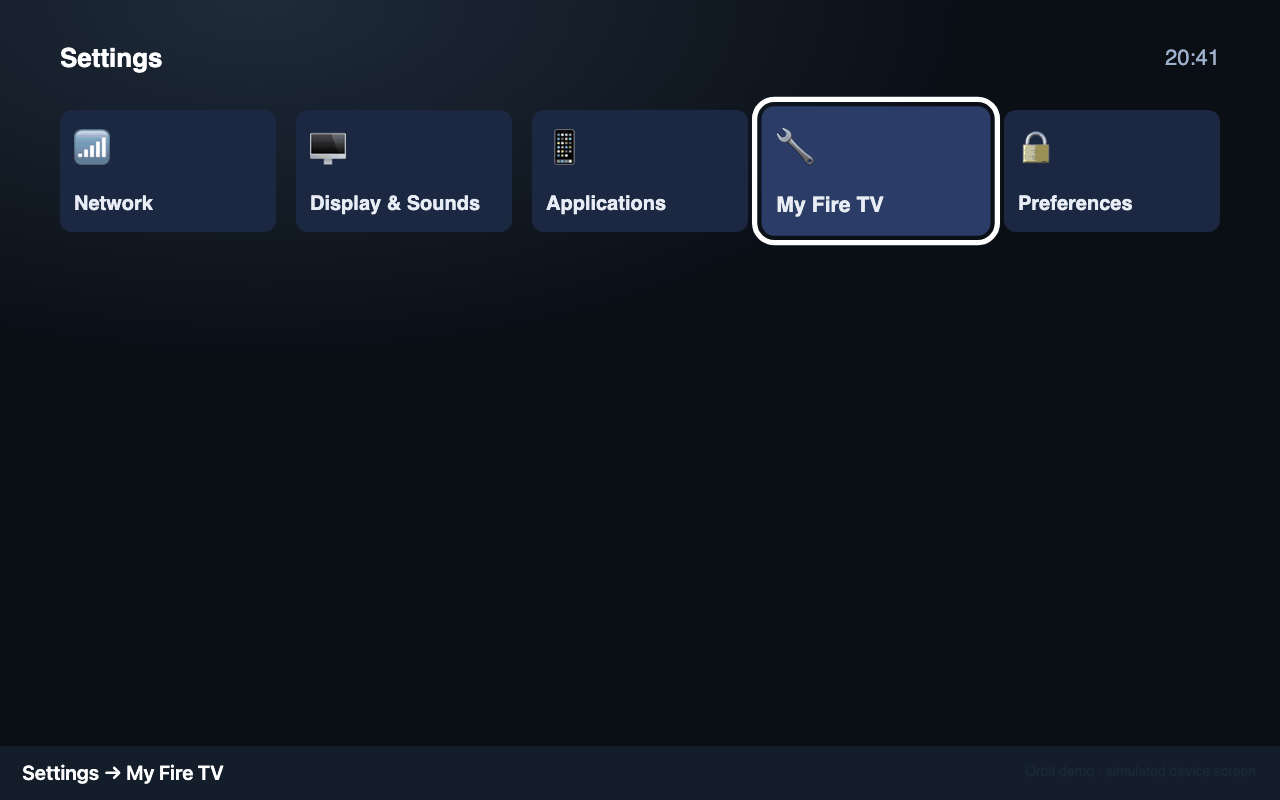
Settings: My Fire TV Developer options
Choose Developer options. If you don't see it, open About and select the device name 7 times, then go back.
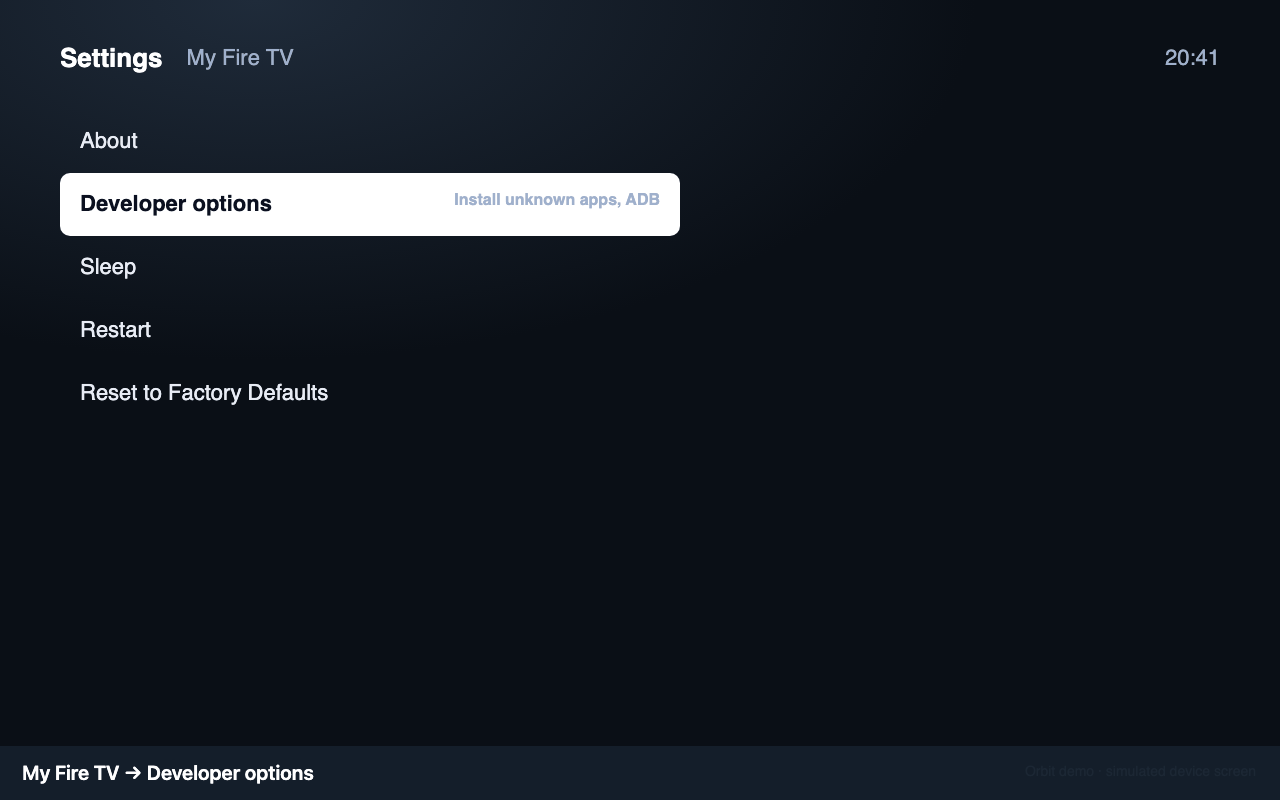
My Fire TV: Developer options Allow Downloader
Choose Install unknown apps and turn Downloader to ON.
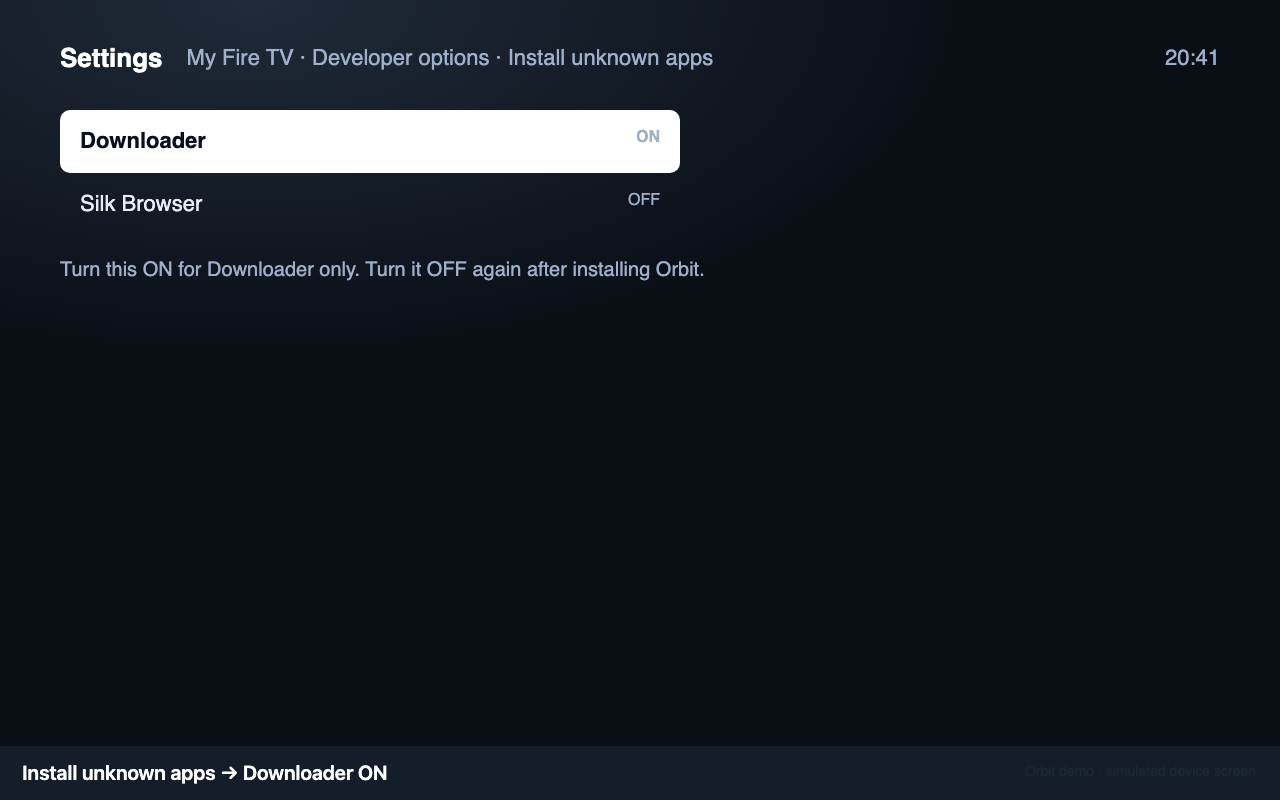
Install unknown apps: Downloader ON Download Orbit
Open Downloader, enter get.orbit.example/firetv in the URL box and press Go. When the installer asks, choose Install, then Open.
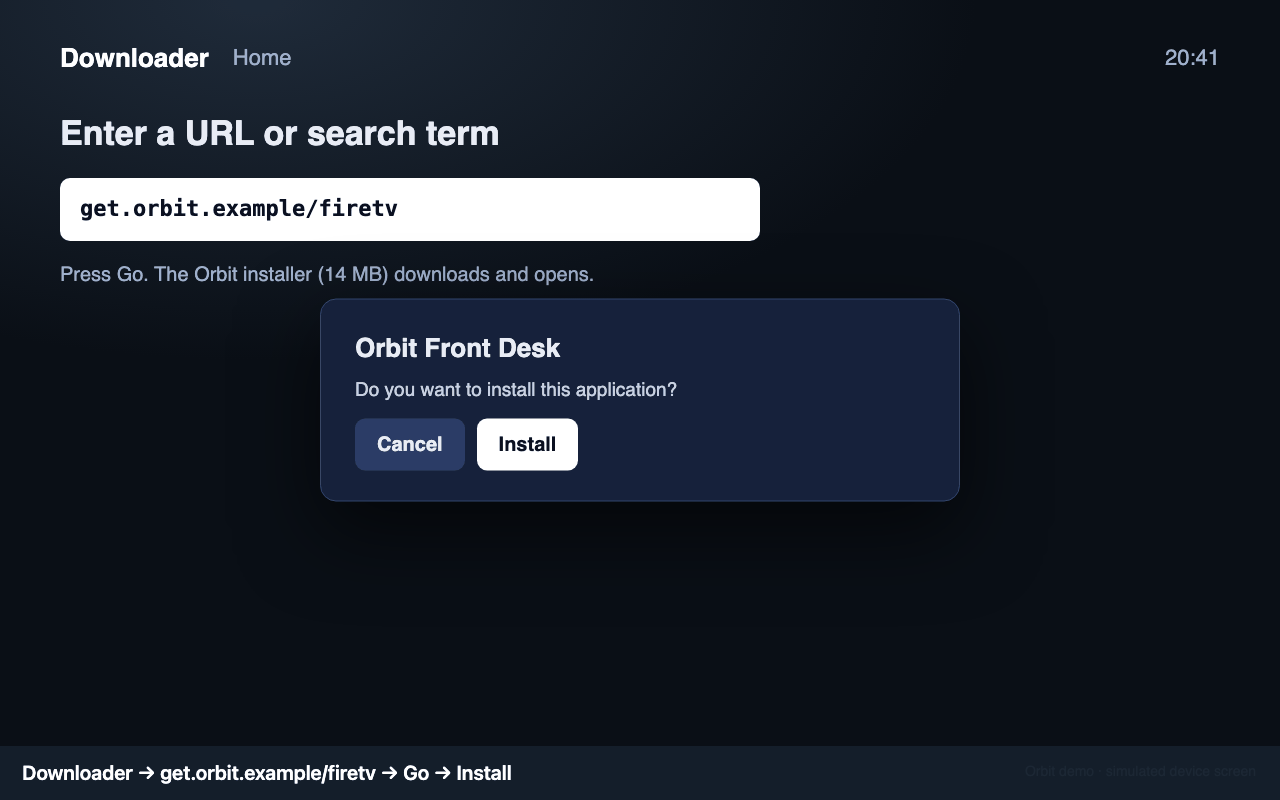
Downloader: enter the address and Install Switch unknown apps off again
Back in Settings → My Fire TV → Developer options → Install unknown apps, set Downloader to OFF. Orbit updates itself from inside the app.
Sign in with a pairing code
The app has no password screen on TVs: you pair it with a 6-digit code.
Get a code
In the Orbit web app open Settings → Apps and click Generate pairing code (choose the device type). The code works for 10 minutes.
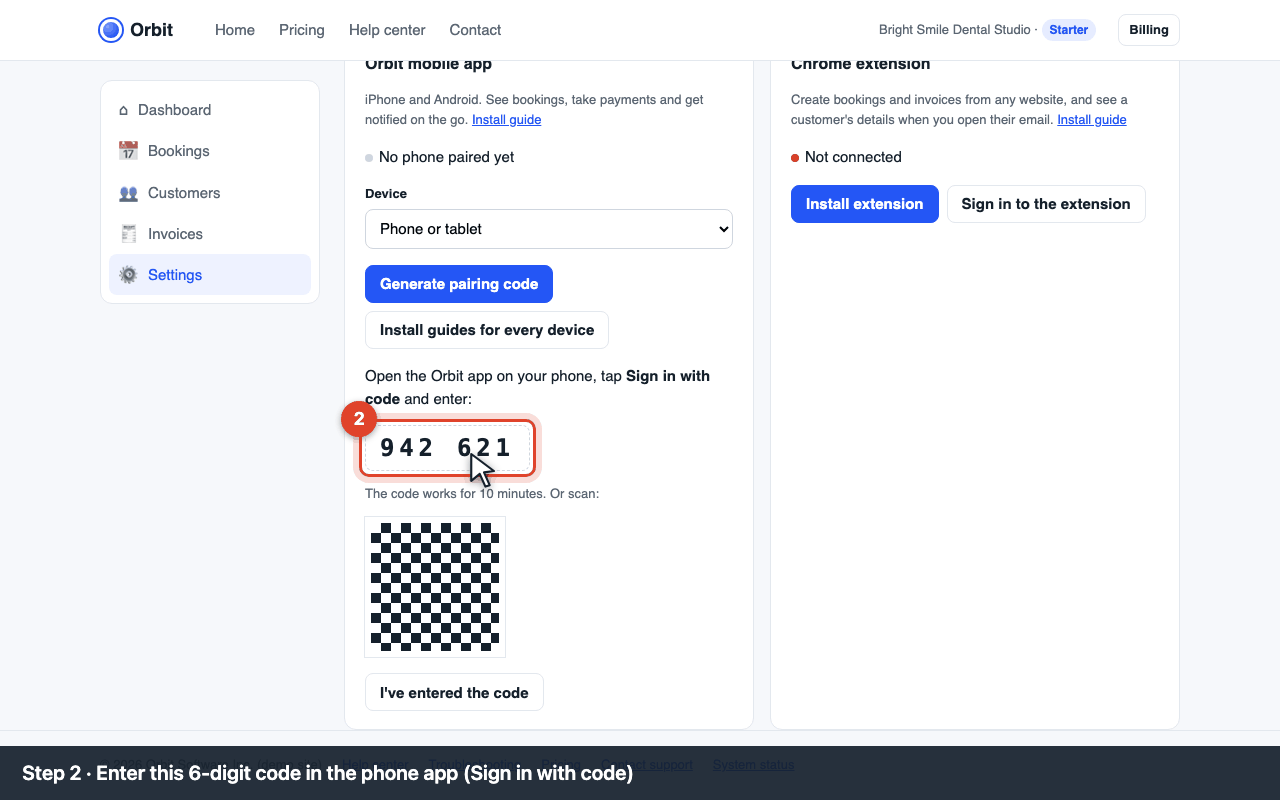
Settings → Apps: the 6-digit pairing code Enter it on the device
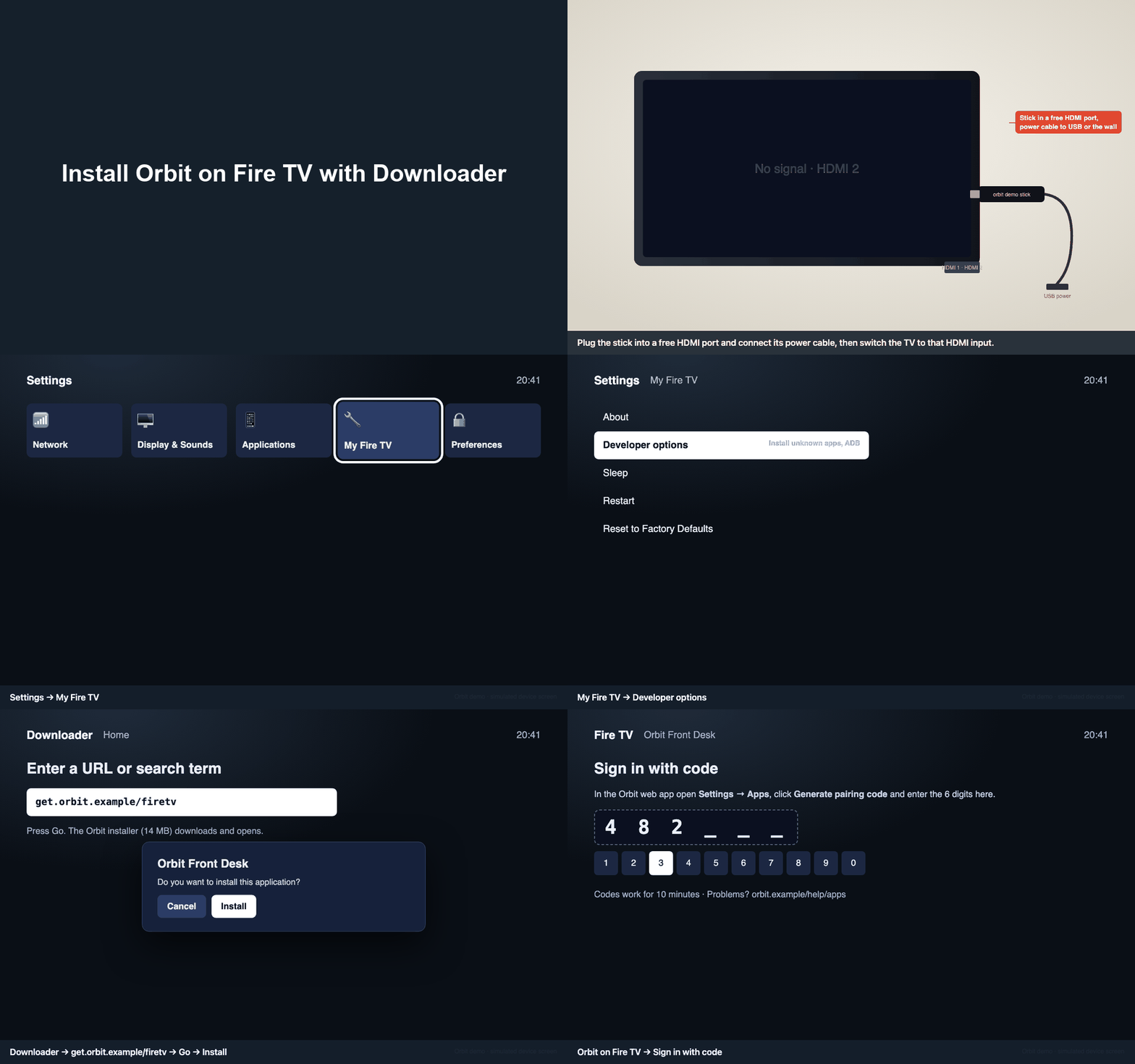
Open Orbit on the device, choose Sign in with code and type the 6 digits with the remote or keyboard.
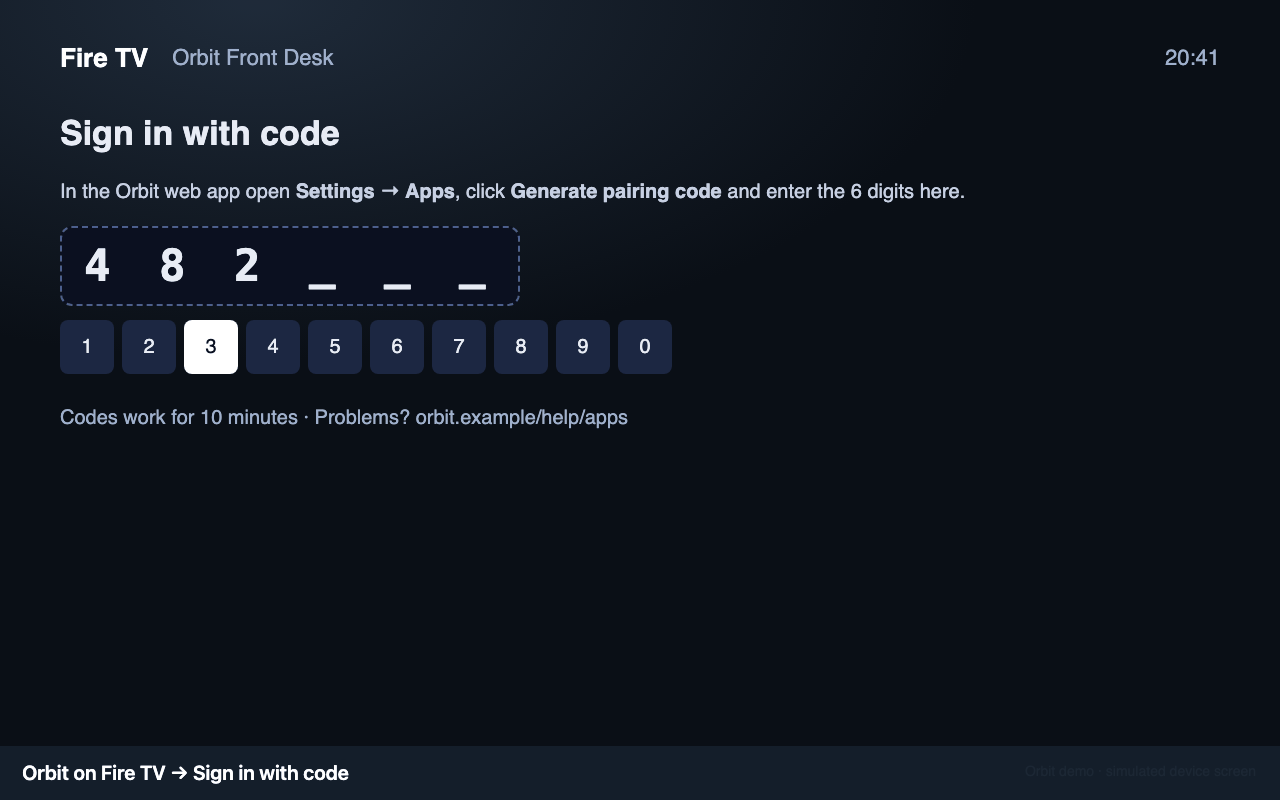
The device's Sign in with code screen Confirm
Back in the web app click I've entered the code. The device shows your dashboard and the Apps tab shows it as paired.
Video guide
Troubleshooting
| Code | What you see | Fix |
|---|---|---|
| E-APP-120 | “This app is not available in your country” | Use the Downloader steps above, or ask support to add your country to the Appstore listing. |
| E-APP-130 | “Install unknown apps” is off / “Blocked by your organisation” | Settings → My Fire TV → Developer options → Install unknown apps → Downloader ON. If Developer options is missing: About → select the device name 7 times. |
| E-APP-131 | Downloader: “Could not download” / “File not found” | Type the address exactly: get.orbit.example/firetv. Check the TV is online (Settings → Network). |
| E-APP-150 | “App not compatible with this device” | Needs Fire OS 7 (2nd-gen Fire TV Stick and older aren't supported). Settings → My Fire TV → About shows the version. |
| E-APP-110 | Pairing code expired | Codes last 10 minutes. Generate a new one in Settings → Apps and enter it within 10 minutes. |
| E-APP-111 | Pairing code not recognized | Check the digits (0 vs O, 1 vs 7) and that the web app is signed in to the right Orbit account. Only Owners and Admins can pair devices. |
| E-APP-140 | Can't sign in with email and password | On TVs use Sign in with code instead; passwords with special characters are hard to type with a remote. If you use two-factor authentication, the code sign-in skips it. |
| — | Remote doesn't type in the code box | Press the centre button to open the on-screen keyboard, or use the Fire TV phone app as a keyboard. |
System requirements
Fire OS 7 or newer (Fire TV Stick 4K, 4K Max, Lite, Fire TV Cube, 3rd-gen Stick) · 40 MB free