Orbit on iPhone and iPad
Install from the App Store, pair with a code, fix App Store and notification problems.
Demo site: the buttons open a demo download dialog and nothing is installed on your device.
InstallVideoPair with a codeTroubleshootingRequirements
Install
Open the App Store
Search for Orbit Front Desk and tap Get, then confirm with Face ID / Touch ID.
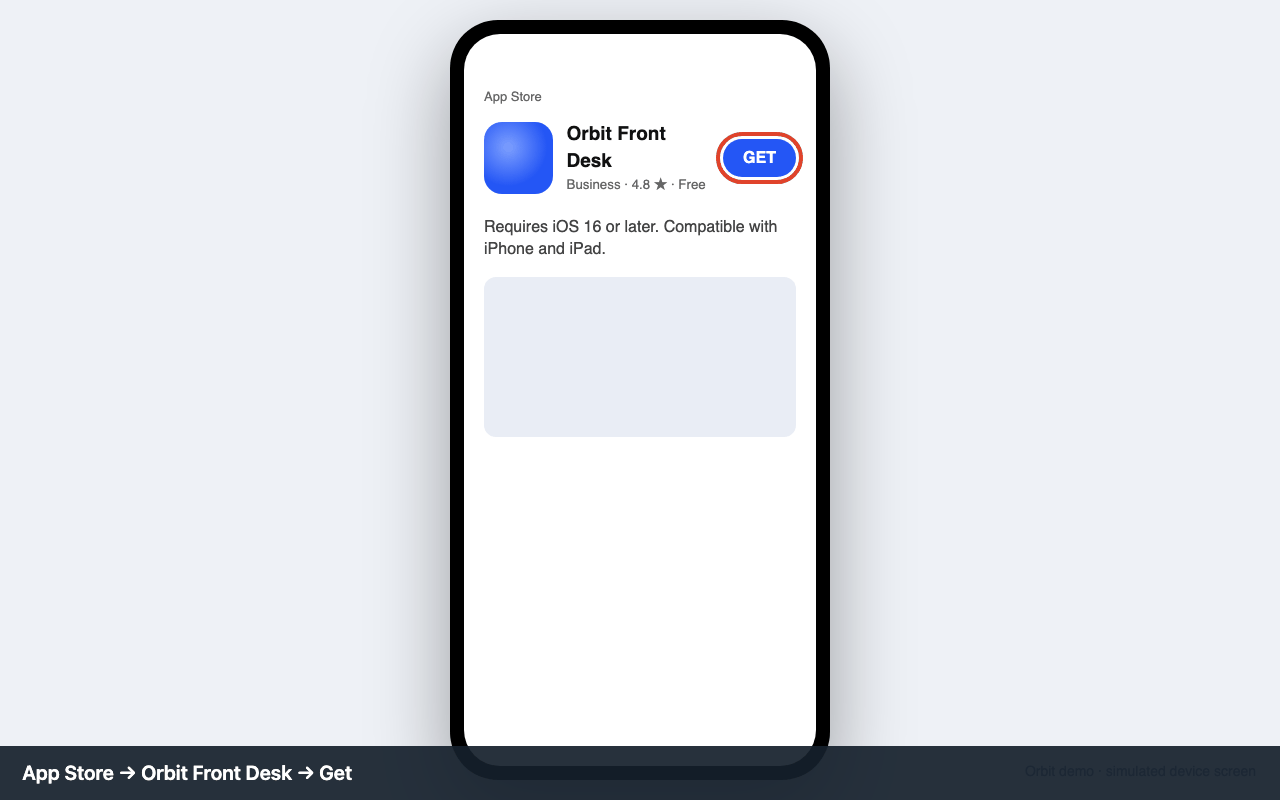
App Store listing: Orbit Front Desk → Get Open the app
Tap Sign in with code (or use your email and password).
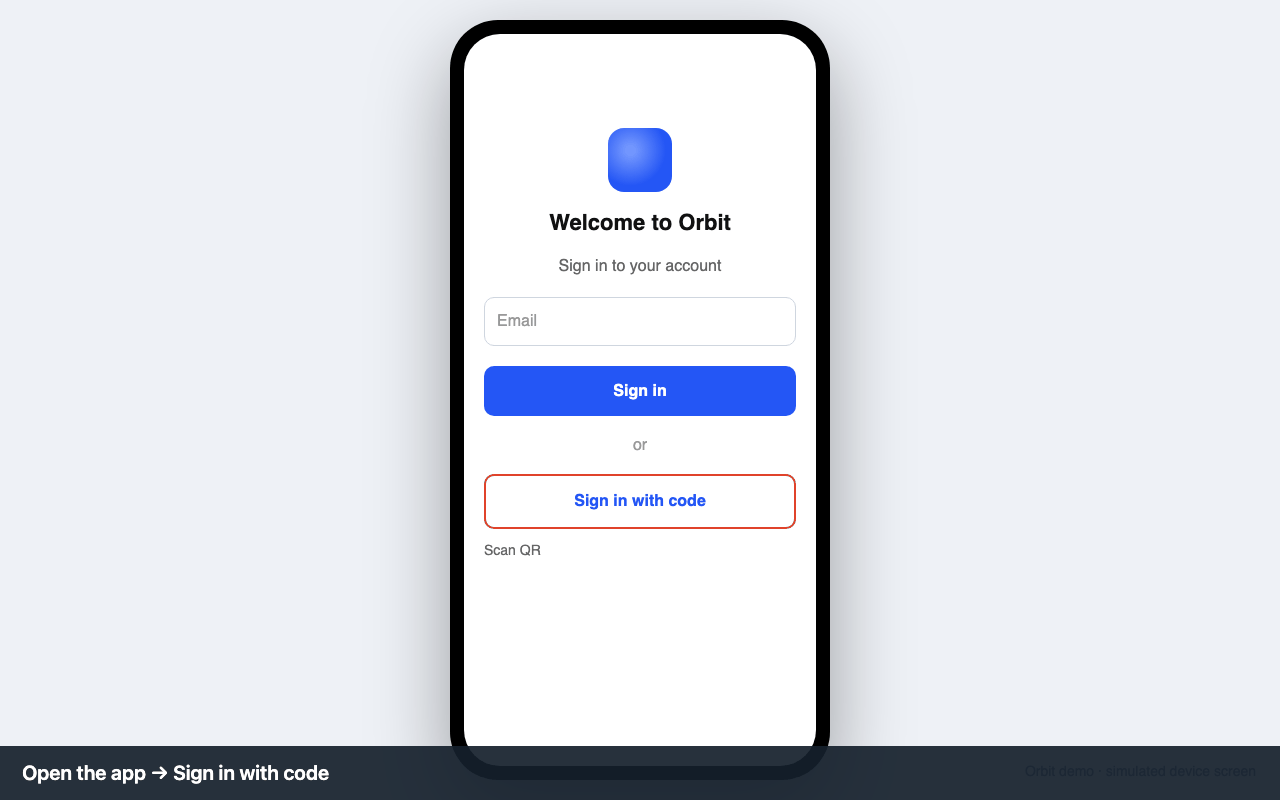
First screen: Sign in with code Pair
Enter the 6-digit code from Settings → Apps, or tap Scan QR and point the camera at the web app.
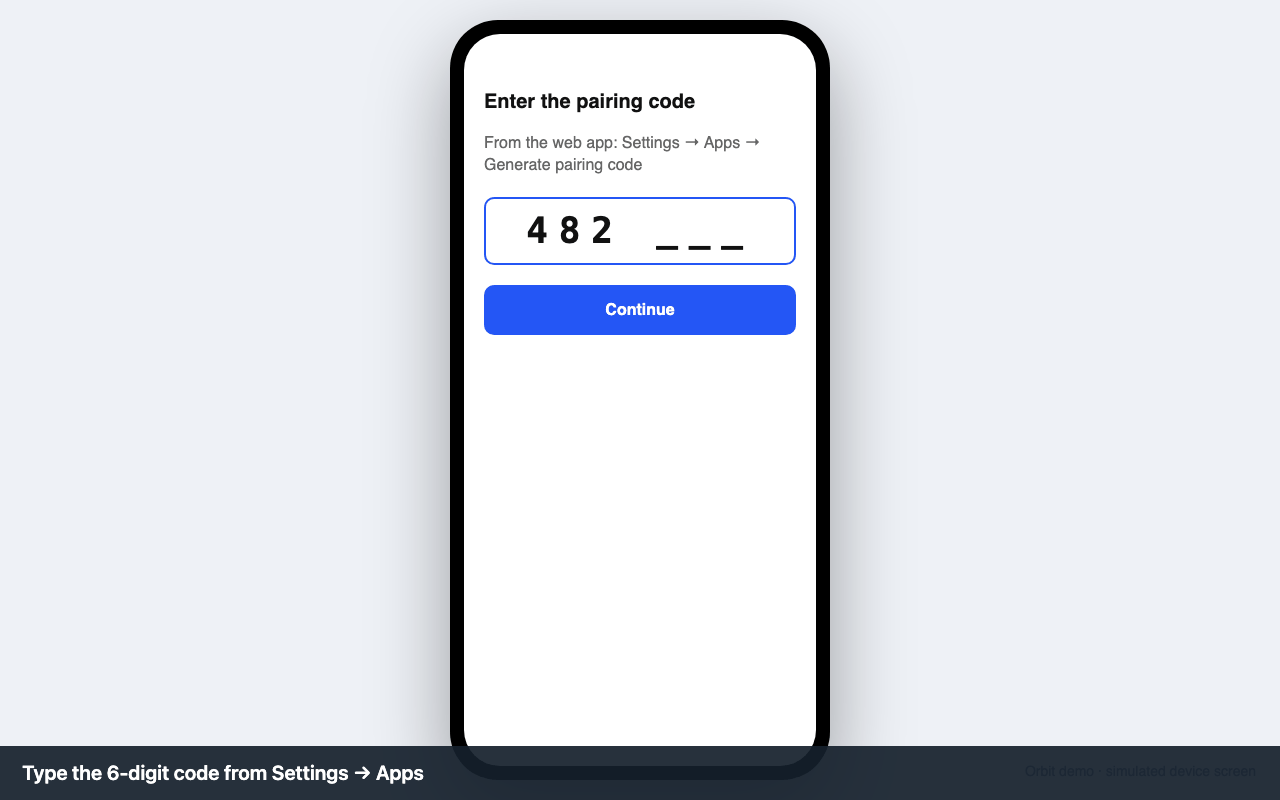
Enter the pairing code
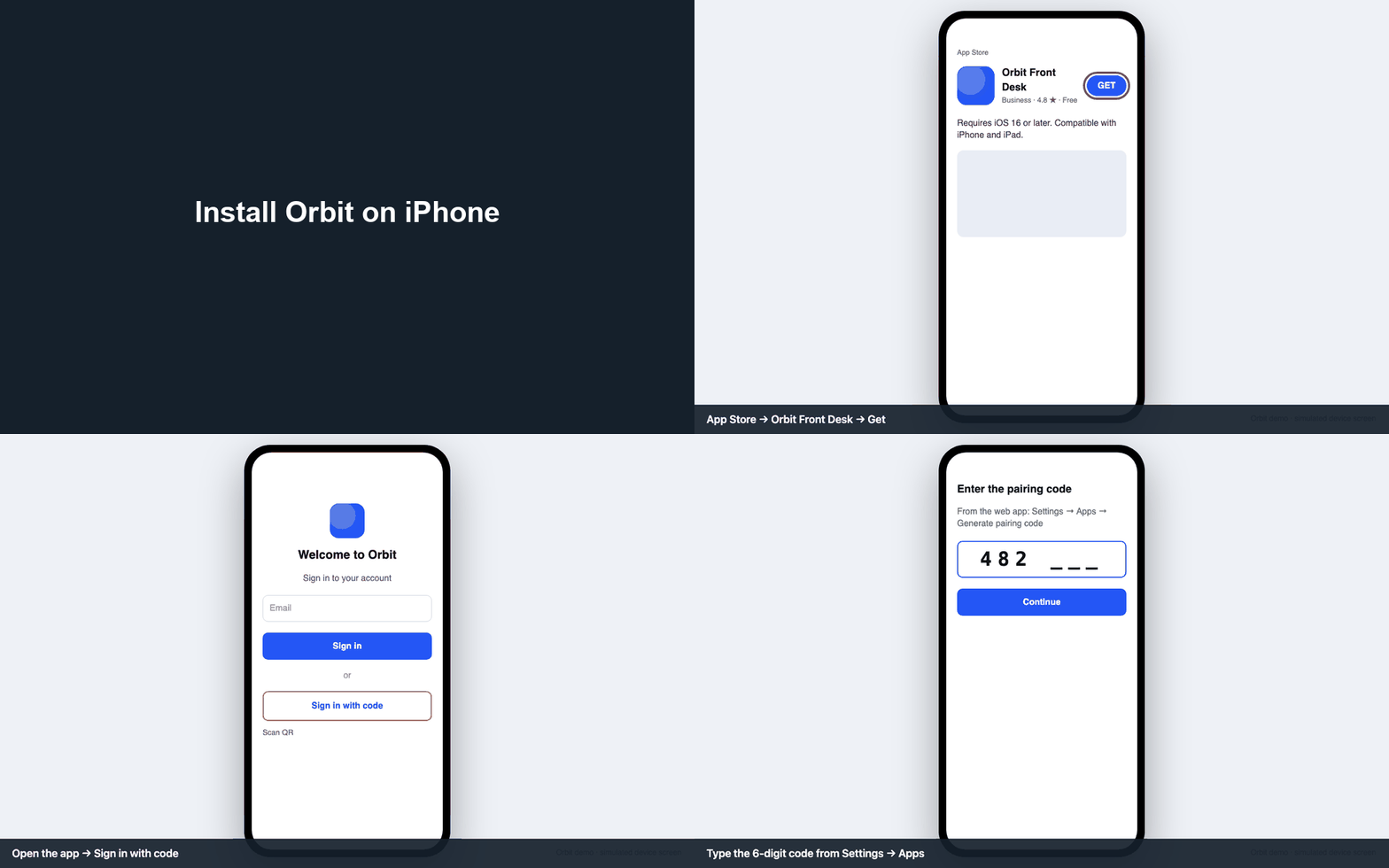
Video guide
Sign in with a pairing code
The app has no password screen on TVs: you pair it with a 6-digit code.
Get a code
In the Orbit web app open Settings → Apps and click Generate pairing code (choose the device type). The code works for 10 minutes.
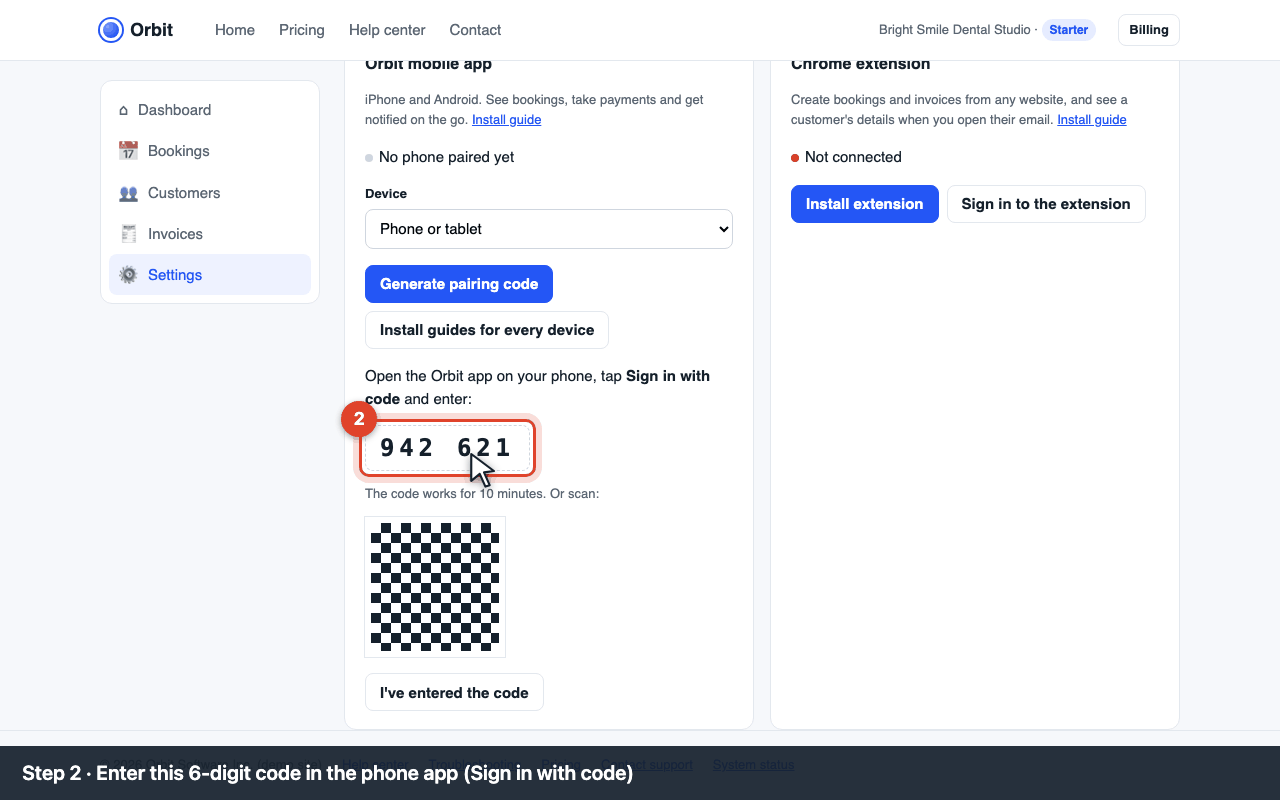
Settings → Apps: the 6-digit pairing code Enter it on the device
Open Orbit on the device, choose Sign in with code and type the 6 digits with the remote or keyboard.
The device's Sign in with code screen Confirm
Back in the web app click I've entered the code. The device shows your dashboard and the Apps tab shows it as paired.
Troubleshooting
| Code | What you see | Fix |
|---|---|---|
| E-APP-120 | “Not available in your country or region” | Orbit is on the App Store in 46 countries. Change the App Store country under Apple ID → Media & Purchases, or ask support to add your country. |
| E-APP-150 | “Requires iOS 16.0 or later” | Update iOS (Settings → General → Software Update). iPhone 8 and newer support iOS 16. |
| E-APP-110 | Pairing code expired | Codes last 10 minutes. Generate a new one in Settings → Apps and enter it within 10 minutes. |
| E-APP-111 | Pairing code not recognized | Check the digits (0 vs O, 1 vs 7) and that the web app is signed in to the right Orbit account. Only Owners and Admins can pair devices. |
| E-APP-140 | Can't sign in with email and password | On TVs use Sign in with code instead; passwords with special characters are hard to type with a remote. If you use two-factor authentication, the code sign-in skips it. |
| — | No notifications | Settings → Notifications → Orbit → Allow notifications; also check Focus modes. |
System requirements
iOS / iPadOS 16 or newer · 80 MB free